

PerMark
AI speeds the work. Your vision steers it.
A Markdown app to read and review what your AI agents write, and steer the work through its documents.
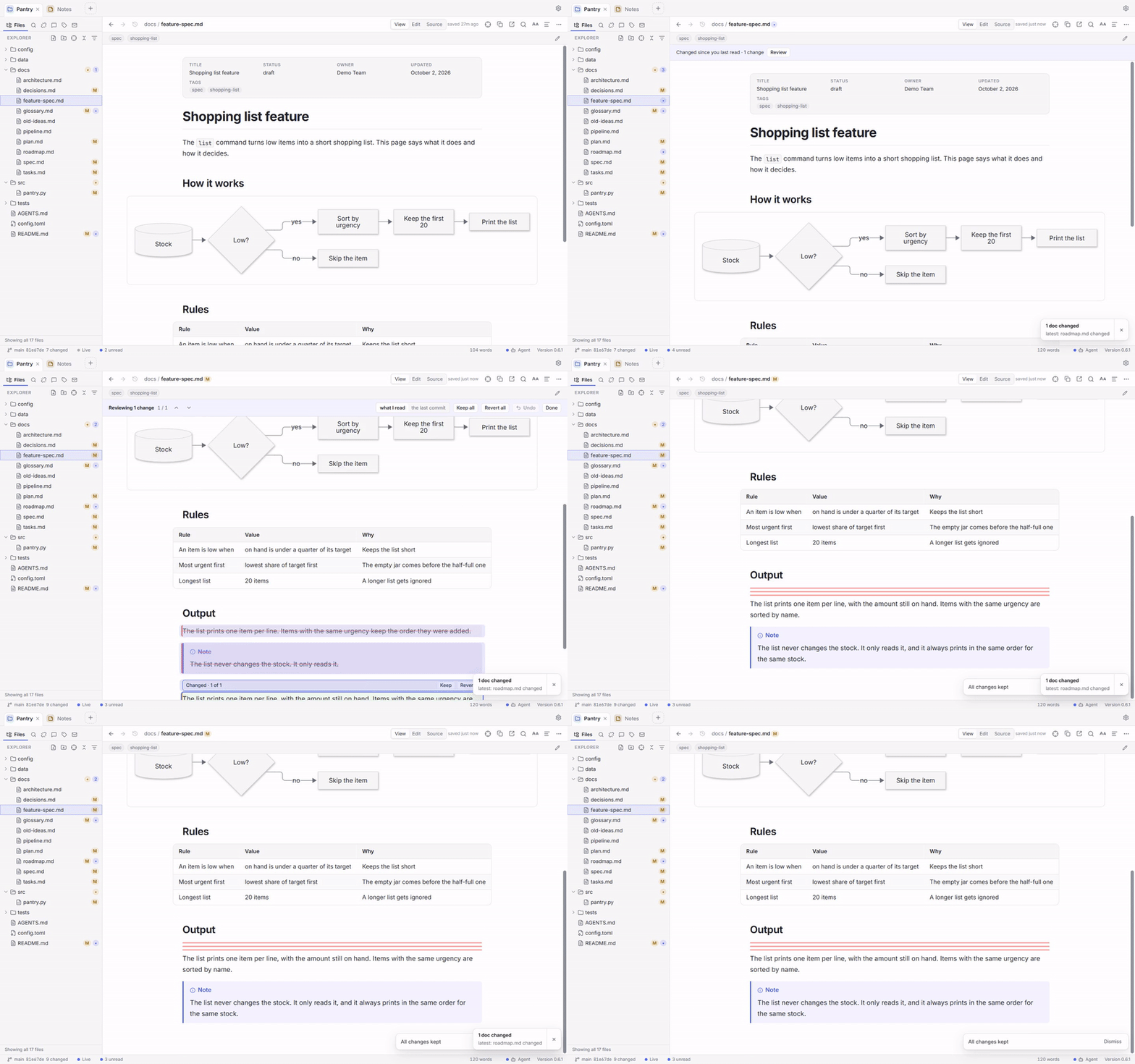
It opens every Markdown file as a clean page, shows what your agents change while they write, and lets you keep or revert each change.
Created and maintained by Edelmar Schneider.



Get PerMark: Microsoft Store (Windows) · GitHub Releases (Windows, macOS, Linux)
Where to start · Try it · Install · Use with an AI agent · Shortcuts · What's new · Contributing
Free and open source (MIT or Apache-2.0) · No account, no telemetry · Windows, macOS and Linux (tested by hand on Windows)
Where to start
| Build with AI agents? | Got a .md file? |
|---|---|
|
Your agents write the plans, specs and reports. Your job is to read them, judge them and steer. Open the project folder in PerMark and keep it next to your terminal.
|
Your AI, a colleague or a download gives you a
|
Either way, PerMark works with any AI tool, or with none. It follows changes whatever program writes the files: an AI agent, an editor or git. It is a unified document workspace (UDW): Markdown at the center, with the config, data and code files around it.
Try it in a minute
- Install. Get PerMark from the Microsoft Store or from GitHub Releases.
- Open. Choose a folder as a project (
Ctrl+O), or a single.mdfile (Ctrl+Shift+O). It opens in View, as a clean page. - Watch. Let your agent write in that folder. Changed passages glow. Press
Ctrl+Shift+Lfor Follow mode, and PerMark opens each document while the agent writes it.
📖 Beautiful to read, easy to edit
Every Markdown file opens as a clean page, with its tables, diagrams, math and properties. Edit it as it looks, and keep notes that save themselves.

- A clean page. GitHub-flavored Markdown with tables, task lists, footnotes, alerts and description lists. Code blocks are highlighted for about 190 languages. In a project, links open inside the app, with Back and Forward, like a wiki.
- Diagrams and math, written as text. Mermaid and PlantUML diagrams are drawn inside PerMark, with no Java and no server. Math shows as formulas.
- Front matter as a properties card. View shows it as a clean card. In Edit, you change its values one by one, and the rest of the file stays as it is.
- Made for long reading. A light, dark or system theme, with softer light tones (Paper, Sage, Gray). Three reading widths, an
outline to jump between sections, and Focus mode (
Ctrl+Alt+F), which leaves only the page. - Panels where you want them. Files, Search, the Outline and the other panels can sit in the sidebar, in the right panel or in a bottom panel under the document. Drag a panel by its tab, or use its "…" menu. Layouts… saves an arrangement under a name, and Reset layout brings back the default.
- View, Edit, Source. One switch in the header. View is for reading. Edit changes the page as it looks, with a toolbar
and a
/block menu. Source shows the raw file, every byte, with find and replace and go to line. A switch beside the modes draws a Mermaid or PlantUML diagram next to its text while you type (off until you turn it on). - Special blocks, drawn in Edit too. Formulas, diagrams, alerts, footnotes and HTML look in Edit exactly as they do in View. Click one to edit its text right there, with a live preview. A picture you paste is saved next to the document, and Edit draws it.
- Notes that save themselves. Click Notes, next to Settings, or press
Ctrl+Shift+Nfor a new note from anywhere in PerMark, and type. No name to choose, no folder to pick, no save prompt. Notes are plain Markdown files you own, and Copy puts a drafted prompt on the clipboard as exact Markdown.
⚡ See what your AI writes
See what your AI writes while it writes, and what changed since you last looked.
- Changed passages glow. The open document reloads while an agent writes, and keeps your place. Changed blocks glow, and removed blocks leave a marker you can expand.
- Live changes. A feed lists every file that changed, one entry per file. Show all changes, only yours, or only those from outside.
- Follow mode (
Ctrl+Shift+L) opens the Markdown document being written. It waits while you edit. - Unread dots, like mail. A dot marks each Markdown document that changed since you last read it, and folders count them.
Alt+Uopens the next one. - Since last visit. One list of what changed while the project was closed: Changed, New or Removed. It compares the content of your documents, so it works without git, and it still shows the changes after the agent has committed.
- Worktrees too. Linked git worktrees are found and watched, so agents working in parallel branches show up as well.
PerMark sees the changes in your folder, whatever program makes them. It tells you whether a change came from you or from outside.
✅ Decide what stays
You decide what stays: keep or revert each change, comment on any passage, and share a project with an agent only when you turn it on.

- Review, change by change. When a document changed since you last read it, a quiet bar says how many changes there are.
Review shows each one in place: block by block in Markdown, line by line in code, logs, data and config files. Choose
Keep or Revert for each (
K,R), or for all at once. Compare with what you last read, or with the last commit. - Earlier versions. In a folder that is a git repository, Earlier versions… lists every commit that changed a document. Pick one and the review shows what differs from the document now: Revert brings back one change, Bring back this version the whole text. Only the file changes, and you can undo it.
- Comments an agent can mark done. Select a passage and press
C. With the agent connection on, your agent reads your open comments and marks them done with a reply. Send to agent copies them as a prompt for any agent chat. Comments are yours alone. - Only what you changed is saved. Edit and Source rewrite only the blocks you changed. Every other byte stays as its author, or agent, wrote it.
- Reload theirs or Keep mine (overwrite). If an agent changes a file while you edit it, you choose, for the whole document.
- Git in plain words. Letter badges, with a legend that says what each letter means. Compare with your last visit or with the last commit. PerMark only reads git: it never commits, stages or creates a repository.
- Find anything, to the section. Search everywhere (
Ctrl+T) finds files, sections, tags and commands in one box. Give any file tags and a one-line description; the ones you add in the app never touch your files. - Links follow your files. Move or rename a file, and PerMark shows each link it will update before it changes them.
Ctrl+Zin the Explorer takes it back.
🧩 Markdown at the center, not alone
Markdown leads, and many files around it open too: config files as clean sheets, data and code, pictures, audio and video.

- Config files as clean sheets. TOML, YAML, INI,
.env,.propertiesand ignore files open as sections, keys and values, with comments as captions. Change a value, and only those bytes change. Sheets edit values, not keys. YAML flow style is read-only, and a file over 256 KB or 3,000 rows shows as plain text. - TOON.
.toonfiles, the compact data format made for AI, open as tables and cards and can be edited in place. The Converter turns JSON, XML, YAML, CSV and TOML into TOON or another format, shows the estimated token saving of each choice, and never writes over the original. - AI files, recognized.
AGENTS.md,CLAUDE.md,SKILL.md, Cursor rules (.mdc),llms.txt, prompt files, and model and dataset cards open with no setup. - Prompt blocks. XML-like prompt tags such as
<context>and<instructions>fold as blocks, and the Markdown inside still renders.{{name}}variables are marked, and@pathreferences link to the file. - JSON, XML, code and plain text open with highlighting. A very large text file opens at once.
- Pictures, audio and video open in the app (not every audio or video format plays). Other files open with the program your system has for them. Programs and scripts are never run from a click.
- Token count: how many tokens a document, a section or a folder takes. Exact for OpenAI's tokenizers, marked as approximate for Claude and Gemini. It asks before it downloads a tokenizer's vocabulary.
- Local AI, on your computer (optional). Settings → Local AI offers a short list of small AI models that run offline, on your graphics card when you have one. Nothing is downloaded until you choose a model, and Test shows how well it runs. The models work only for PerMark's own features.
- Correct spelling and grammar. In Edit or Source, the spell-check button next to the mode switch (or
Ctrl+Alt+K) checks the selection, the paragraph or the whole document with the local model you chose. Each suggestion is underlined in the text, and nothing changes until you accept it. Code, links and front matter are never touched. - Your editor, at the line. A path like
src/main.rs:42that names a file of the project is a link: it opens your own editor at that line.
Many features are plugins. All of them are on from the start, except the experimental Assistant, which waits until you turn it on. Turn off what you do not need in Settings → Plugins; a plugin that is off leaves nothing behind.
Questions people ask
"Git diff already shows me the changes."
Git diff compares with the last commit. PerMark also shows what changed since you last read each document, even after the agent
has committed, and you keep or revert each change.
"Does it replace my code editor?"
No. PerMark is for the documents around the code. Open in external editor takes you to your own editor at the place you are reading.
"What does the agent get, and how do I stop it?"
Sharing is off in every project until you turn it on. The agent reads, shows you a place and marks comments done. An agent
connected this way never edits through PerMark. Details in Use with an AI agent. The optional
Assistant is different: the agent you choose there works on a copy of your folder, and you accept each change. Details in
Work with an assistant.
"Does it go online?"
No account, no telemetry, no tracking. PerMark goes online only to check for its own updates (installer versions; the Store and
snap update it instead), and when you ask: a picture from the web, a spelling dictionary, the optional token-count vocabulary, or a local AI model and the engine that runs it. PerMark itself
never sends your documents online. An AI agent you connect is a separate program: what it sends online is up to that agent.
If you turn on the Assistant, the agent you choose gets a copy of your folder without the files listed in .aiignore, and it
sends your messages and what it reads to its own AI service. An agent that starts with npx or uvx is downloaded by that
tool the first time.
The Windows installers may also download Microsoft's WebView2 component while they install, if your computer does not have it.
"Where does PerMark keep my data?"
Your settings, recent folders and your choices about each folder (for example whether an agent may read it) stay in your user
profile. What belongs to a project goes in a .permark/ folder inside it: its shared settings and tags, your comments and read
marks, and caches PerMark can rebuild. PerMark creates that folder only when you ask for it, for example with Initialize
PerMark; a folder without one keeps its data in your profile, and a .permark/ folder that arrives later does not take your
data unless you choose Move into the folder. Git never sees .permark/local and .permark/cache; choose Settings → This
folder to keep the whole .permark/ folder out of git. A .permark/ folder can only narrow what PerMark or an agent may do,
never widen it.
What PerMark is not
- Not a code editor. No completion, refactoring, build, run or debug. Real code work opens in your own editor.
- Not an agent. It does not train or replace your AI agents. It shows what your AI writes, and you decide what stays. The optional Assistant can start an agent you choose, but that agent works on a copy of your folder, and its edits reach your files only when you accept them. A command you allow runs on your computer, with your permissions. The small local models it can use work only for PerMark's own features, such as correcting your text.
- Not tested by hand on macOS or Linux. PerMark is tested by hand on Windows; the macOS and Linux builds are checked automatically.
Why Markdown
Markdown was made for readers. So is PerMark. It was designed in 2004 so that plain text reads well as it is. Today, AI tools write it too, for the same reason: it is structured enough for a machine and clear enough for a person.
It is also an opinion: many documents that live in Word or PDF today would be better as Markdown. They would be smaller, comparable line by line in git, readable by any AI, and never locked inside one app.
Install
Windows, macOS and Linux. PerMark is tested by hand on Windows; the macOS and Linux builds are checked automatically. Installers are not code-signed, so your system shows a warning the first time you install or open it.
| System | Get it |
|---|---|
| Windows | The Microsoft Store, which keeps PerMark up to date. Or the -setup.exe from Releases. Version 0.17 is the last one with an .msi. A copy installed from an .msi moves to the -setup.exe at its next update in PerMark: Windows asks to remove the old copy and asks for administrator permission (if you say no, it asks again at the next update). Or uninstall it and install the -setup.exe. Your settings and notes stay. If you connected an AI agent, copy its connection lines again from Settings → This folder → AI agents: the program now runs from your user folder |
| macOS | The universal .dmg (Apple silicon and Intel) from Releases |
| Linux | The .AppImage, .deb or .rpm from Releases, or the snap (64-bit Intel and AMD): sudo snap install permark. To print on your printers from the snap, also install the CUPS snap: sudo snap install cups |
Copies from GitHub check for updates when they start and once a day, and offer to download and restart. The Microsoft Store and the snap update their copies themselves.
Starting with version 0.18, each installer on the Releases page has a build provenance attestation: a record, signed by GitHub, that the file was built by this repository's release workflow from the tagged commit. To check a download with the GitHub CLI, run gh attestation verify <file> -R EdelmarSchneider/permark. Each release also lists the third-party software inside the program (SBOM files in the CycloneDX format, one for the Rust crates and one for the npm packages).
PerMark becomes your default app for Markdown only if you choose it: it asks once, with Markdown files checked and other types
unchecked. On Windows, you confirm the choice in Windows Settings.
Coming from TrailMark? The command is now permark. If an agent is set up with the old trailmark command, run the setup
lines from Settings → AI agents again. PerMark 0.6 no longer renames old .trailmark/ folders: update
to 0.5.8 before you update to 0.6.
Command line
permark                  # start PerMark: your last windows and tabs come back
permark .                # open the current folder as a project
permark docs/plan.md     # open a single file
permark --notes          # open the Notes
On Windows, the installer from GitHub can put permark on your PATH: tick Add the permark command to PATH on its
first page. On macOS, and on Windows without that option, use the full path of the program or add it yourself. The
Microsoft Store and snap versions put permark on your PATH.
Build from source
You need Rust, Node.js 24 and the
Tauri prerequisites. The program lives in app/, and app/rust-toolchain.toml pins
the Rust version, which rustup installs for you.
git clone https://github.com/EdelmarSchneider/permark.git
cd permark/app
npm ci
npm run tauri build   # or: npm run tauri dev
Use with an AI agent
PerMark can tell an AI agent what you are looking at, the way a code editor tells it the open file. Say "rewrite this paragraph" or "go through my comments", and the agent knows which document, which section and which words you mean. It works with any tool that speaks the Model Context Protocol (MCP).
What it shares, and how it stays in your hands:
- Off until you turn it on, per project. Choose Share this folder with agents in Settings → AI agents, or run Agent connection: turn on from the command palette. Nothing inside a project can turn it on.
- Local. It talks only to programs on your computer and opens no network port.
- Read, never edit. The agent sees where you are, what you selected, what changed, the comments and the notes you shared one by one. It reads, shows you a place and marks comments done. It never edits a file through this connection.
- Text from the folder is marked as such. Comments, done replies, the activity list and the hand-off come from PerMark's
files in the folder. A folder you copied, synced or cloned can carry text that someone else wrote, so the agent is told to
read it as information, never as instructions. If the folder's git repository tracks PerMark's private folder
(
.permark/local), or PerMark cannot check that, the agent gets none of that text, only how much was left out and why, and it cannot mark those comments done. - Your limits. You choose what it may do, group by group. Files in
.aiignorenever reach an agent; everything else it reads as written, passwords and keys included, so list files with secrets in.aiignore. - Visible. While the connection is on, the status bar shows Agent. Click it to see what is shared and the latest requests.

Connect in two lines. Turn the connection on, then add PerMark to your agent as an MCP server. Settings → This folder → AI agents shows these lines with the right path for your copy, and a Copy button.
# Claude Code
claude mcp add permark -- "<path to PerMark>" mcp
{ "mcpServers": { "permark": { "command": "<path to PerMark>", "args": ["mcp"] } } }
The second form fits any other MCP client. With the connection on, Hand off to agent copies one line for your prompt, so the agent asks PerMark what you did instead of rereading the project.
What an agent can do: the 13 tools
| Tool | What it answers or does |
|---|---|
get_context | The open document, whether you are reading or editing, the section on screen, your selection (up to 2,000 characters), whether there are unsaved edits, and how many comments are open |
list_unread | The documents that changed since you last read them, the newest at the top |
map | The files below a folder, by path: approximate size in tokens, flags (unread, changed), and the tags and descriptions you gave them. The place to start in a large project |
search | "Where is X described?": ranked sections with path, line, size, snippet and heading, from the same index as Search everywhere. tags narrows the search, and budget caps the size of the answer |
list_tags | The tags in use, with how many documents have each; or, for one tag, the documents that have it with their descriptions |
outline | The parts of one file (headings, JSON keys, parts of a config file) with line ranges and sizes, so an agent reads only the part it needs; optionally the links in and out |
read | The text of one part of a file: a heading, an anchor, a key path or a range of lines. Long parts continue with a cursor |
list_comments | The open comments, each with the quoted passage, its section and line, and its text |
resolve_comment | Marks a comment done, with an optional short reply that you read under the comment |
list_notes | The notes you chose to share with agents, each with its title, when it changed and its size |
read_note | The text of one shared note, by the name list_notes gave |
activity | What was done in PerMark since Hand off to agent was last pressed (checked against the disk), plus the changes made outside PerMark |
open | Shows you a place (a document, a line or a heading) without taking the focus from the agent's terminal, and offers a way back |
Answers are short on purpose: a header line, then tab-separated rows, so an agent spends few tokens. A project's .permark/ folder
can narrow what an agent may do, never widen it. An agent reads a project only while PerMark has it open: with PerMark closed,
every tool says so, and open starts PerMark so you see the agent connect. With the connection off, every tool says so and
explains how to turn it on.
Add what you are reading to every prompt: permark context
permark context prints where you are as one short line and exits, for tools that can run a command before each prompt:
Viewing docs/plan.md › Plan › Rollout (lines 40-62), selected (lines 44-46): 'ship it on Friday', 2 comments open.
In Claude Code, a UserPromptSubmit hook in .claude/settings.json (or your user settings) adds it to every prompt:
{
  "hooks": {
    "UserPromptSubmit": [
      { "hooks": [{ "type": "command", "command": "\"<path to PerMark>\" context" }] }
    ]
  }
}
When there is nothing to say (the connection is off, or PerMark is not open), the command prints nothing, so a hook never adds
noise to a prompt. A project that keeps its data in its .permark/ folder also has .permark/local/agent-context.json while the connection is on:
the same answer as a file, for a script or a tool without MCP. It holds the open document, the section on screen and your
selected text, and any program running as you can read it, as can a folder-sync tool that watches the project. It stays out of git and is deleted when the connection is turned off. A copy that PerMark did not write on this computer for this folder, such as one that came with a copied or synced folder, is deleted when the folder opens.
Work with an assistant (experimental)
The Assistant plugin lets an AI agent you choose work on your folder from a panel beside the document, while you decide which of its changes reach your files. It is experimental and off until you turn it on in Settings → Plugins. It is not available in the snap, which cannot start other programs.
- Your agent, your account. Choose an agent from the list of the Agent Client Protocol
registry, or type the command that starts your own. PerMark starts that program on your computer. Depending on the agent,
you need Node.js (for agents that start with
npx), uv (foruvx) or the agent itself installed. The agent uses your own account with its provider, which may cost money, and most agents ask you to sign in the first time. - A copy, not your files. Ask for a change, with a passage you selected if you like. The agent works on a copy of your folder
that PerMark keeps outside it, without the files listed in
.aiignore, the.gitand.permarkfolders and agent settings files. - You accept each change. The agent's edits are listed line by line and reach your files only when you accept them, one change or a whole file at a time, and you can undo a change you accepted. Changes you have not accepted are deleted when you close the folder or turn the plugin off.
- It asks first. When the agent wants to run a command or do something outside its copy, PerMark asks you, unless the agent's own settings already allow it. A command you allow runs on your computer, with your permissions.
- What goes online. Your message, the passage you attached and what the agent reads in its copy go to the agent and its
provider, under that provider's terms. An agent that starts with
npxoruvxis downloaded by that tool the first time. PerMark itself makes no network call for this.
The agent runs with your rights. Its copy keeps your files out of its way, but it is not a security boundary, so use only agents you trust. The read-only agent connection for agents you run yourself stays as it is.
Keyboard shortcuts
The ten that matter most. On macOS, use Cmd where this README says Ctrl (except Ctrl+Tab and Ctrl+Shift+Tab).
| Action | Shortcut |
|---|---|
| Search everywhere (files, sections, tags, commands) | Ctrl+T |
| Quick open a file | Ctrl+P |
| Every command | Ctrl+Shift+P |
| Next unread document | Alt+U |
| Follow mode | Ctrl+Shift+L |
| Next / previous change | F7 / Shift+F7 |
| While you review: keep / revert | K / R |
| Comment on the selected passage | C |
| Edit, and back to View | Ctrl+E |
| Focus mode: only the page | Ctrl+Alt+F |
All of them, and you can change them, in Settings → Keyboard shortcuts.
All default shortcuts
Reading and navigating
| Action | Shortcut |
|---|---|
| Search all docs (by section) | Ctrl+Shift+F |
| Find in page | Ctrl+F |
| Show / hide the outline | Ctrl+Alt+O |
| Show / hide the sidebar (when you are not editing) / the right panel | Ctrl+B / Ctrl+Alt+B |
| Show / hide the bottom panel (when it holds a view) | Ctrl+J |
| Cycle the reading width | Ctrl+Alt+W |
| Back / forward | Alt+← / Alt+→ |
| Copy reference (or selection with reference) | Ctrl+Alt+C |
| Copy the whole document (View and Source) | Ctrl+Shift+C |
| Open in your external editor | Ctrl+Shift+E |
| Zoom in / out / reset | Ctrl+= / Ctrl+- / Ctrl+0 |
| Open a folder / a file | Ctrl+O / Ctrl+Shift+O |
| Settings | Ctrl+, |
| Edit the open document's tags and description | T |
Tabs
| Action | Shortcut |
|---|---|
| Next / previous tab | Ctrl+Tab / Ctrl+Shift+Tab (or Ctrl+PageDown / Ctrl+PageUp, or Ctrl+Alt+→ / Ctrl+Alt+←) |
| Go to tab 1 to 8 / the last tab | Ctrl+1 … Ctrl+8 / Ctrl+9 |
| Close the tab | Ctrl+W |
Review
| Action | Shortcut |
|---|---|
| Keep / revert this change | K / R |
| Next / previous change | N / P |
| Keep all / revert all | Shift+K / Shift+R |
Editing
| Action | Shortcut |
|---|---|
| Open Source mode | Ctrl+Alt+E |
| Back to View | Ctrl+E or Esc |
| Save | Ctrl+S |
| New file | Ctrl+N |
| Bold / italic / strikethrough (Edit) | Ctrl+B / Ctrl+I / Ctrl+Shift+X |
| Bold (Source, in Markdown files) | Ctrl+B |
| Link / inline code (Edit) | Ctrl+K / Ctrl+Shift+C |
| Headings 1 to 6 (Edit) | Ctrl+Shift+1 … 6 |
| Paragraph (Edit) | Ctrl+Alt+0 |
| Block menu (Edit) | / in an empty paragraph |
| Find / replace / go to line (Source) | Ctrl+F / Ctrl+H / Ctrl+G |
Notes and the Explorer
| Action | Shortcut |
|---|---|
| Open the Notes | Ctrl+Shift+D |
| New note, from anywhere in PerMark | Ctrl+Shift+N |
| New note (in Notes) | Ctrl+N |
| Copy the note's text (in Notes) | Ctrl+Shift+C |
| Open a pinned note (in Notes) | Ctrl+1 … Ctrl+9 |
| Rename / delete (to the system trash) | F2 / Del |
| Take back the last file operation (on macOS, a deleted file stays in the Trash) | Ctrl+Z |
What's new and ideas being explored
PerMark 0.6 rebuilt the whole program. Every release is in the CHANGELOG.
-
0.18.0: a release about trust and polish: a folder from elsewhere can no longer make PerMark act for it, where PerMark keeps a folder's data is chosen once, a crash leaves a report on your computer (nothing is sent), large folders and many files at once are much faster, the keyboard and screen readers reach everything, PerMark asks before it starts a program for the first time, and many fixes across editing, review, git and settings.
-
0.17.0: the Assistant shows replies as formatted text, continues your last conversation (also after a restart), lets you choose the agent's model and reasoning level in the panel, and has its own settings page.
-
0.16.0: the experimental Assistant, off until you turn it on: an AI agent you choose works on a copy of your folder, and its edits reach your files only when you accept them, with Undo; in all 20 interface languages.
-
0.15.0: a Panels menu in the status bar to show or hide every panel from one place, with Show entries in the command palette and Undo when you close one; sidebar tabs added by plugins can now be closed; and a crowded row of tabs keeps every tab in sight.
-
0.14.0: Settings split into App and This folder, with each folder setting saying whether it is for everyone or only you; table columns sized by what they hold; Expand all and Collapse all in JSON, XML and config trees; spelling in five more languages (16 in all); Polish and Ukrainian in the interface (20 languages); and the demo pages one click away.
-
0.13.0: spelling while you edit, with 11 dictionaries that download only when you choose a language; Save as PDF, Save as HTML and Print; a refreshed look with a clearer Notes button; more Markdown on the page: Obsidian-style callouts that fold,
:::containers, highlights, emoji shortcodes, inline footnotes, code block titles and line numbers, Graphviz diagrams, chemistry formulas and\( \)/\[ \]math; five more interface languages (18 in all) with dates and numbers in your region's format; right-to-left paragraphs; an installer option that putspermarkon your WindowsPATH; and demo pages that show what PerMark can draw. -
0.12.0: panels you arrange yourself, in the sidebar, the right panel or a new bottom panel, with layouts you save by name; and the earlier versions of a document, from git.
-
0.11.0: translation with a local AI model, in the editor or into a new file; correction inside tables; and Refresh (
F5) in the Explorer. -
0.10.0: Edit shows formulas, diagrams, alerts and other special blocks the way View does.
-
0.9.0: small AI models that run on your computer, offline, and spelling and grammar correction with them.
-
0.8.0: pictures you paste are saved next to the document, emoji and symbols in the editor, and View, Edit or Source stays as you left it.
-
0.7.1: seven more interface languages (Japanese, Korean, French, European Portuguese, Catalan, Galician and Romanian).
-
0.7.0: projects inside a folder, each with its own git and reading state, and a place in Settings for AI agents.
-
0.6.2: a Notes button next to Settings, keys to hide and show the side bars, files dropped from your file manager copy into the project or open as tabs, Move to window for a tab, and every plugin on from the start.
-
0.6.1: every folder, file and Notes gets a tab, and your windows and tabs come back when PerMark starts.
-
0.6.0: many windows in one app, a full Settings page, a Plugins page and keys you can change.
-
Config files and TOON as clean sheets, AI files recognized with no setup, and prompt blocks.
-
Review of code and text files, line by line, with keep or revert.
-
An agent connection with 13 tools, permission groups,
.aiignoreand Hand off to agent.
Ideas being explored, no promises: a home for structured work with AI, such as spec-driven development, for the projects that want it; ready-made ways of working to adopt, such as Spec Kit templates; and a shared place where people and always-on agents follow and review the work together, with the person in charge.
Tech
PerMark is a Tauri 2 app. The core is written in Rust: rendering (comrak and ammonia), file watching (notify), git (the one on your computer, or a built-in libgit2 when there is none), the search index and the block-preserving saves. The interface is Svelte 5 and TypeScript in the system webview, with CodeMirror 6 (Source) and Milkdown (Edit).
Contributing
Issues and pull requests are welcome. The project uses git-flow (develop for integration, feature/* branches) and a strict
quality gate:
cd app
npm run check   # version, rustfmt, prettier, build, clippy -D warnings, svelte-check, cargo test, vitest
See CONTRIBUTING.md before opening a pull request. It also explains how to fix or add a translation. Everyone taking part follows the Code of Conduct.
License
Copyright (c) 2026 Edelmar Schneider. Licensed under either of MIT or Apache-2.0, at your option.
"PerMark" and its logo are trademarks of Edelmar Schneider: forks are welcome under a different name. See TRADEMARKS.md.


