



Oya Browser
Oya Browser is a HIPAA-compliant browser for healthcare and regulated work: an AI browser on your desktop, and an agentic browser your agents run in the cloud or self-hosted, with every action on a tamper-evident audit trail. An agent completes a task once in natural language; Oya records the steps as a playbook that replays deterministically, without calling a model, and repairs individual steps when a page changes. People can watch any session and take control at any time.
This repository contains the community edition: the browser, the control plane, the web console,
the CLI, and the SDKs: TypeScript on npm
(npm install @oya-ai/browser) and Python on PyPI
(pip install oya-browser). HIPAA compliance and a signed BAA come with Oya Cloud and the
enterprise edition.
- Features
- Install for Claude Code or Codex
- Requirements
- Quickstart
- Usage
- Samples
- Deployment
- Security and compliance
- Documentation
- Support
- Contributing
- License
Features
- Record and replay. A successful
ask()is saved withtoPlaybook()and replayed withplay()using new inputs and no model calls. Each playbook is also exported as a Playwright module. In a ten-site benchmark, nine sites replayed every recorded step with healing disabled. - Step repair. When a recorded step no longer matches the page, the agent completes that step and the playbook is updated. Repair can be disabled per call.
- Stable browser identity. Personas bind a fingerprint, cookie store and proxy that persist across sessions (stealth results: 0% headless on CreepJS, 31/31 on Sannysoft).
- Authentication. Stored passwords and TOTP seeds are sealed and never exposed to the model. CAPTCHA detection and solving, and reuse of logins from your desktop browser, are built in (logins).
- Human in the loop. Any session can be watched live and taken over, then returned to the agent.
- Provider choice. The same API runs browsers on your own Docker hosts, Oya Cloud, Browserbase, Steel, Anchor, Browser Use or any Chrome endpoint (comparison).
- Standard protocols. Every browser exposes CDP for Playwright, Puppeteer and similar clients, and an MCP endpoint for AI assistants.
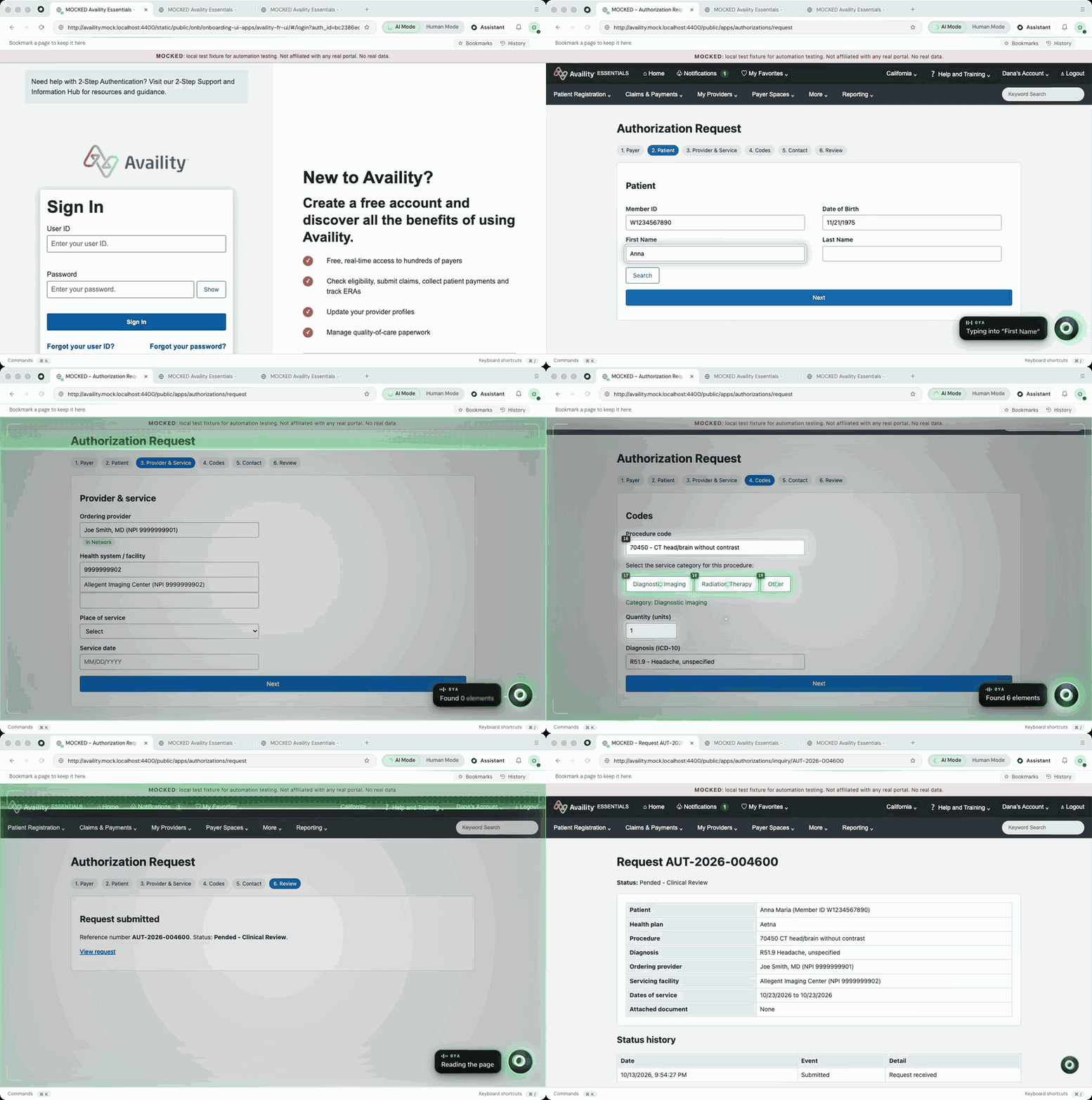
An agent session in the Oya desktop app, accelerated. The portal and patient data are fictional.
Install for Claude Code or Codex
Paste this prompt into Claude Code or Codex on your Mac or Windows PC:
Install Oya Browser on this computer and connect it to this agent. Use the
desktop installer command for my OS from https://oyabrowser.com/llms.txt.
Run it with claude-code if you're Claude Code or codex if you're Codex.
Tell me when to click Connect in Oya.
The installer opens Oya and requests the connection. Finish the welcome screen if prompted, then click Connect. Keep Oya open and start a new agent session. To verify the connection, ask: “Use my Oya desktop browser to open https://example.com and tell me the page title.” You can also download the desktop app manually.
To use Oya Cloud, follow the steps for your agent below.
Claude Code
Install the Oya Cloud plugin from your terminal:
claude plugin marketplace add OyadotAI/oya-browser
claude plugin install oya-browser@oya
Start a new Claude Code session, run /mcp, select the Oya server, and follow the sign-in prompt.
Codex
Create an API key in the Oya dashboard. Set OYA_API_KEY in the environment where you run Codex, then register the cloud server once:
codex mcp add oya-cloud --url https://oyabrowser.com/mcp/pool --bearer-token-env-var OYA_API_KEY
Start a new Codex session with that environment variable set. To verify either installation, ask your agent to open https://example.com with Oya and report the page title.
Requirements
| Component | Version |
|---|---|
| Node.js | 20 or later |
| Docker | Docker Desktop or Docker Engine with buildx for all deployment examples; Compose 2.24 or later for Docker deployments |
| Deployment tools | kubectl + python3 for Kubernetes; AWS CLI v2 for ECS; gcloud, kubectl, python3 and gke-gcloud-auth-plugin for GKE |
| Model API key | Anthropic, OpenAI or Gemini, for natural-language tasks |
Quickstart
This quickstart installs the control plane and one browser on your machine with Docker, then runs a sample that records a task and replays it.
1. Install the control plane
Export a model API key, then run the installer:
export ANTHROPIC_API_KEY=sk-ant-...   # or OPENAI_API_KEY, or GEMINI_API_KEY
curl -fsSL https://raw.githubusercontent.com/OyadotAI/oya-browser/main/install.sh | sh -s -- --yes
The installer clones this repository to ~/oya-browser, starts the services and prints the
connection settings. Export them:
export OYA_BASE_URL=http://localhost:3100
export OYA_API_KEY=oya_...
2. Install the SDK
npm install @oya-ai/browser   # TypeScript: https://www.npmjs.com/package/@oya-ai/browser
pip install oya-browser       # or Python: https://pypi.org/project/oya-browser/
3. Run the sample
Save the following as agent.mjs and run node agent.mjs:
import { Oya } from '@oya-ai/browser';

const browser = await new Oya().browser.start();
await browser.goto('https://httpbin.org/forms/post');

// Run 1: the agent works it out, and Oya records what it did.
let t = Date.now();
await browser.ask('Order a large pizza for {{name}}, then submit the order', { data: { name: 'Ada' } });
await browser.toPlaybook('pizza');
console.log(`agent:  ${(Date.now() - t) / 1000}s`);

// Every run after: the recorded steps with new inputs. No LLM in the loop.
t = Date.now();
await browser.play('pizza', { name: 'Alan' });
console.log(`replay: ${(Date.now() - t) / 1000}s, no model`);
await browser.stop();
The agent completes the order once and the result is saved as the playbook pizza. The replay
submits the same order for a different name without calling the model. Output from one run with
Gemini 3.8 Flash:
agent:  152.712s
replay: 14.246s, no model
Agent time depends on the model; replay time does not. To watch the session, open http://localhost:3100 and sign in with the same API key.
Using Oya Cloud instead
To skip the local installation, create an API key at oyabrowser.com,
export only OYA_API_KEY, and run the same sample. start() uses the
Oya desktop app when it is open and signed in, and otherwise
starts a browser in Oya Cloud.
Usage
Choosing a model
By default, ask() uses the model configured for your API key. To choose one in code, pass
model to the client. The setting applies to that client only and is not saved:
const oya = new Oya({
  model: { provider: 'anthropic', name: 'claude-sonnet-5', apiKey: process.env.ANTHROPIC_API_KEY },
});
Supported providers are openai, anthropic, gemini, vertex and openrouter. When
apiKey is set, requests go directly to that provider and are billed to your account.
Connecting Playwright and other CDP clients
Every Oya browser exposes a CDP endpoint, so Playwright, Puppeteer, Stagehand and browser-use connect without changes:
import { chromium } from 'playwright-core';
import { Oya } from '@oya-ai/browser';

const browser = await new Oya().browser.start();
const cdp = await chromium.connectOverCDP(browser.cdpUrl);
const context = cdp.contexts()[0];
const page = context.pages()[0] ?? (await context.newPage());
await page.goto('https://example.com');
console.log(await page.title());
await cdp.close();
await browser.stop();
Connecting AI assistants
Install and open the desktop app, complete
its welcome screen and click Connect next to your installed agent (Claude Code,
Codex, Cursor or VS Code). Confirm the connection, then start a new agent
session. Oya writes the local configuration for an MCP server named oya-browser at
http://127.0.0.1:47321/mcp to the agent's config; no account, no key. The agent
then uses Oya as its browser in place of Chrome: each session gets its own tab,
you keep yours, and you can take control at any time.
Keep Oya open for repeat use. If the tools are missing, open Oya, check Connect and start a new agent session. If it says "Browser not ready", complete the welcome screen and retry. Login import is optional and may require OS permission; you can sign in within Oya instead. The app includes its MCP server, so no separate extension or MCP package is required. See Oya for coding agents.
With no desktop (servers, containers, CI), any MCP client can use Oya Cloud. For Claude Code:
claude mcp add --transport http oya https://oyabrowser.com/mcp/pool \
  --header "Authorization: Bearer $OYA_API_KEY"
The optional Claude Code plugin connects to Oya Cloud, signs in with your Oya account (no key to set), and includes a browsing skill. For desktop browsing, use Connect instead.
Setup instructions written for agents are published at oyabrowser.com/llms.txt.
Samples
The examples directory contains runnable TypeScript samples. After the
quickstart, the installer's copy is ready to use:
cd ~/oya-browser/examples && npm install
cp .env.example .env   # set OYA_BASE_URL and OYA_API_KEY
npx tsx --env-file=.env playwright/01-connect.ts
| Sample | Description | Runs on |
|---|---|---|
sdk/01-quickstart.ts | Start a browser and complete a task in natural language | Local installation or Oya Cloud |
sdk/05-playbooks.ts | Record, replay, background runs and step repair | Local installation or Oya Cloud |
playwright/01-connect.ts | Playwright through the CDP endpoint | Local installation or Oya Cloud |
sdk/03-mfa.ts | Password and TOTP sign-in with sealed credentials | Desktop app |
sdk/02-captcha.ts | CAPTCHA detection and solving | Oya Cloud, or a configured solver |
sdk/04-personas.ts | Persistent browser identities | Oya Cloud |
playwright/reddit/ | Ten parallel browsers through a residential proxy | Oya Cloud, with a proxy assigned to the persona |
multi-vendor/ | One script across Oya Cloud, Browserbase, Steel, Anchor and Browser Use | Oya Cloud and each provider's API key |
The local installation runs one Docker browser. For samples that require Oya Cloud, use an API
key from oyabrowser.com and leave OYA_BASE_URL unset.
Deployment
The quickstart above uses --yes for SQLite and one Docker browser. For a guided deployment,
run the installer without --yes:
curl -fsSL https://raw.githubusercontent.com/OyadotAI/oya-browser/main/install.sh | sh
Choose Docker, Kubernetes, Amazon ECS or Google Cloud / GKE. The wizard uses the
existing deployments/ examples to deploy the control plane, Postgres
and browser runtime together. Advanced settings cover image overrides, networking, replicas
and optional services. Each question explains the value, its format and default, and where to
find it with a lookup command or console path. Lookup commands are shown for you to run.
The flow moves through Target, Configure, Deploy and Verify, checks prerequisites, waits for
readiness, then verifies a browser session before reporting success.
From a checkout, run the current local wizard:
make wizard
make wizard ARGS="--target k8s"     # skip the destination menu
make wizard ARGS="--target docker --dry-run"   # preview without changing files or resources
Nonsecret answers are saved to oya-install.json; oya install --config oya-install.json
repeats that deployment without questions. Existing version 1 plans and bare --yes keep the
original quickstart behavior. Kubernetes and GKE smoke checks use a private port-forward;
public DNS and TLS may need additional setup. Cloud resources are billable.
See the self-hosting guide for saved plans, credentials and recovery, and the deployment guides for prerequisites, backups and removal.
Security and compliance
Self-hosted deployments include host-level egress rules and a tamper-evident audit trail. See the control evidence and the trust center. To report a vulnerability, follow SECURITY.md.
An enterprise edition, including a HIPAA-ready offering, is maintained separately. Book a time with the founders.
Documentation
| Topic | Link |
|---|---|
| SDK reference | packages/sdk |
| CLI reference | packages/cli |
| Self-hosting | docs/self-hosting.md |
| Logins and sessions | docs/logins.md |
| Replay benchmark | docs/replay-benchmark.md |
| Architecture | ARCHITECTURE.md |
Support
- Questions and discussion: Discord
- Bug reports and feature requests: GitHub Issues
- Self-hosted license (more than 5 cloud browsers): oyabrowser.com/dashboard/billing
- Enterprise: book a time with the founders
Contributing
Contributions are welcome. To set up a development environment:
git clone https://github.com/OyadotAI/oya-browser.git && cd oya-browser
npm run setup
Read ARCHITECTURE.md for an overview of the codebase and AGENTS.md for conventions and the checks each part requires.
| Path | Contents |
|---|---|
packages/sdk | @oya-ai/browser, the TypeScript SDK (MIT) |
packages/cli | @oya-ai/cli, installation and command-line tools (MIT) |
browser | The desktop browser and the cloud browser image |
server | API, MCP, browser connections and control plane |
ui | Web console and public site |
License
The SDK and CLI are licensed under MIT. All other components are available under the Sustainable Use License. See LICENSE.md for permitted use, self-hosting terms and commercial licensing.


