Connecting MCP Clients to PipesHub MCP Server
This guide covers how to connect PipesHub's remote MCP server to Cursor, Claude Code, Gemini CLI, Codex CLI, Claude.ai (Web), and LibreChat using static OAuth credentials or bearer tokens.
PipesHub exposes a remote MCP endpoint over Streamable HTTP at /mcp. MCP Clients connect to this endpoint directly -- no local npm packages or stdio processes needed.
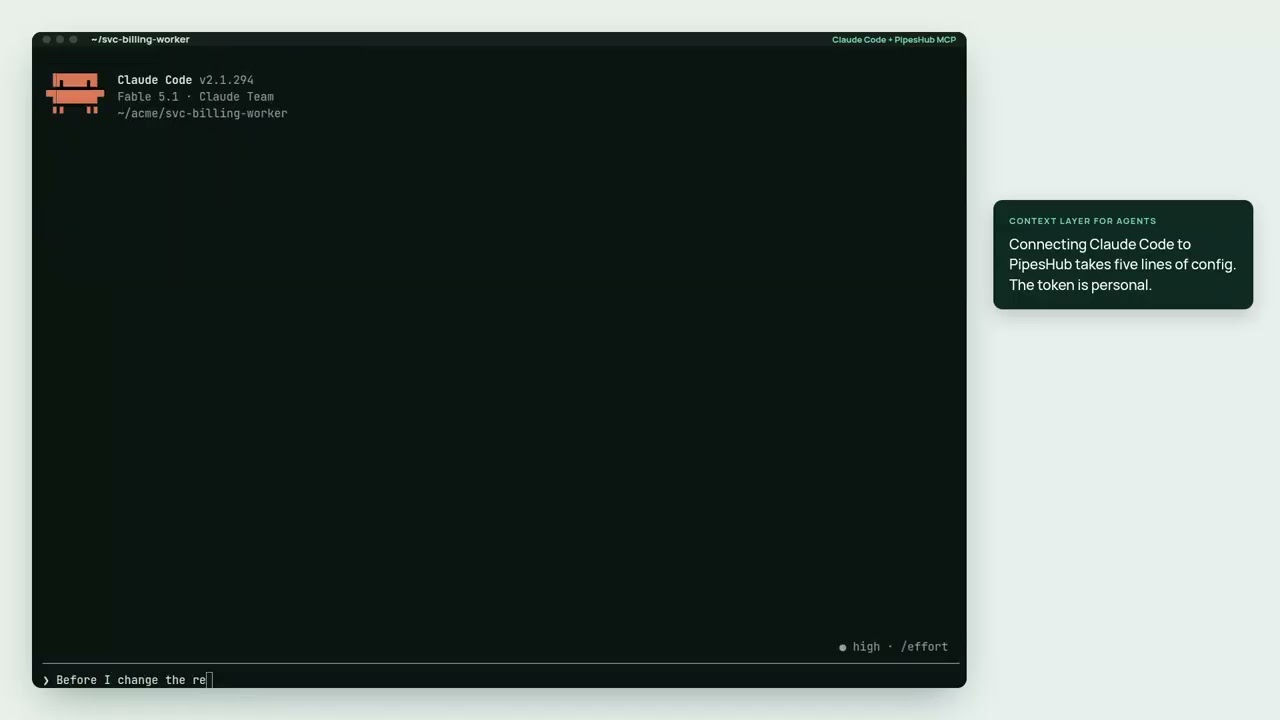
▶ Watch the 2½-minute demo: Claude Code using this MCP server to answer from Jira, Slack, GitHub and Drive, with each person's own permissions.
Coding agent? Start at For coding agents. Install the skill into the user's repo with
npx skills add pipeshub-ai/mcp-server(seeskills/pipeshub) and append theAGENTS.mdsnippet on that page. Listed on the official MCP registry asio.github.pipeshub-ai/mcpand on Cursor Directory as PipesHub. The listing files (plugin.json,mcp.json) default MCP tohttp://localhost:3000/mcp(Docker). Change the URL for a company instance; they contain no secrets. Contributors working in this repository: read AGENTS.md.Claude Code plugin:
/plugin marketplace add pipeshub-ai/mcp-server, then/plugin install pipeshub@pipeshub, adds the MCP server, the skill, and the/pipeshub:askand/pipeshub:setupcommands. It connects to${PIPESHUB_MCP_URL:-https://app.pipeshub.com/mcp}withAuthorization: Bearer ${PIPESHUB_MCP_TOKEN}; export both in your shell (self-hosted: set the URL tohttps://<your-instance>/mcp), then restart Claude Code.Looking for the tool reference? See TOOLS.md for descriptions, arguments, and a decision guide for each tool the MCP server exposes (
pipeshub_chat,pipeshub_search,pipeshub_get_record_content,pipeshub_download_record,pipeshub_directory,pipeshub_sources,pipeshub_agents). Searching and reading records is the recommended default;pipeshub_chatis optional (see Leavingpipeshub_chatout).Using QM? QM cannot attach a third-party MCP endpoint — it is an MCP server to its own harness, not a client. Follow Use PipesHub with QM. The deployment-layer bundle in
qm/gives agents apipeshubcommand inside their sandbox; this package ships that command as a second bin.
Prerequisites
- A running PipesHub instance: PipesHub Cloud or self-hosted. To self-host, the local Docker demo playbook covers install and first-run — do not scaffold LangChain. First-run (account + LLM) is still in the browser; search 500s until an LLM is configured.
- An OAuth app created in PipesHub (see Step 1)
Step 1: Create an OAuth App in PipesHub
- Log in to your PipesHub instance as an admin
- Navigate to Settings > Developer Settings > OAuth Apps
- Click Create OAuth App
- Fill in the app details:
-
Name: e.g.,
MCP Integration -
Redirect URIs: Add all the redirect URIs for the clients you plan to use:
Client Redirect URI Cursor cursor://anysphere.cursor-mcp/oauth/callbackClaude Code http://localhost:<PORT>/callback(e.g.,http://localhost:8080/callback)Claude.ai (Web) https://claude.ai/api/mcp/auth_callbackGemini CLI http://localhost:7777/oauth/callbackLibreChat http://localhost:3080/api/mcp/<server-identifier>/oauth/callback
-
Important: Grant your OAuth app every scope the discovery endpoint lists (see Customizing Default Scopes). Sign-in grants the requested scopes the app allows and drops the rest, so a scope missing from the app does not fail the login; the tools that need it are refused. If the app allows none of the requested scopes, or a requested scope name is unknown, sign-in fails with
invalid_scope.
- Save the app and copy the Client ID and Client Secret
Customizing Default Scopes
The /.well-known/oauth-protected-resource/mcp discovery endpoint lists the scopes the MCP tools use, so clients like Claude Code, which request every listed scope, ask only for what the tools need:
| Scope | Used by |
|---|---|
semantic:write | pipeshub_search |
conversation:chat | pipeshub_chat |
agent:read, agent:execute | pipeshub_agents, pipeshub_sources, pipeshub_chat with an agent |
kb:read, connector:read, config:read | pipeshub_sources, pipeshub_get_record_content, pipeshub_download_record, pipeshub_indexing_status |
kb:write, kb:upload | pipeshub_create_collection, pipeshub_upload |
user:read, team:read, usergroup:read | pipeshub_directory |
code:read | The pipeshub_code_* tools |
Discovery also lists offline_access. It is not a tool scope: it lets the client get a refresh token, so it stays signed in instead of signing in again when its access token expires.
The list is limited to the MCP_SCOPES environment variable on your PipesHub instance, which is also the upper limit on the scopes any personal access token or OAuth token can hold. Remove a scope from MCP_SCOPES to stop discovery listing it. Clients that set their own scopes, such as Cursor and LibreChat, still request it, but PipesHub does not grant a scope that MCP_SCOPES excludes. PipesHub servers older than this behavior list all of MCP_SCOPES.
Placeholders
Replace these in all configurations below:
| Placeholder | Description | Example |
|---|---|---|
PIPESHUB_INSTANCE_URL | Your PipesHub instance URL | https://app.pipeshub.com |
YOUR_CLIENT_ID | OAuth app client ID | clid_abc123... |
YOUR_CLIENT_SECRET | OAuth app client secret | clsec_xyz789... |
The remote MCP endpoint URL is: PIPESHUB_INSTANCE_URL/mcp
Remote MCP Setup
Cursor
Cursor supports static OAuth for remote MCP servers via the auth object in mcp.json.
Configuration
Open Cursor Settings > Tools and Integrations > New MCP Server, or edit your project's .cursor/mcp.json:
{
  "mcpServers": {
    "pipeshub": {
      "url": "PIPESHUB_INSTANCE_URL/mcp",
      "auth": {
        "CLIENT_ID": "YOUR_CLIENT_ID",
        "CLIENT_SECRET": "YOUR_CLIENT_SECRET",
        "scopes": [
          "org:read", "org:write", "org:admin",
          "user:read", "user:write", "user:invite", "user:delete",
          "usergroup:read", "usergroup:write",
          "team:read", "team:write",
          "kb:read", "kb:write", "kb:delete", "kb:upload",
          "semantic:read", "semantic:write", "semantic:delete",
          "conversation:read", "conversation:write", "conversation:chat",
          "agent:read", "agent:write", "agent:execute",
          "connector:read", "connector:write", "connector:sync", "connector:delete",
          "config:read", "config:write",
          "document:read", "document:write", "document:delete",
          "crawl:read", "crawl:write", "crawl:delete"
        ]
      }
    }
  }
}
Cursor will auto-discover the authorization and token endpoints via PipesHub's /.well-known/oauth-protected-resource/mcp metadata.
Note: If the
scopesfield is omitted, Cursor fetches/.well-known/oauth-protected-resource/mcpand requests allscopes_supportedlisted there. To limit access, explicitly list only the scopes you need. You can also control which scopes are exposed server-side — see Customizing Default Scopes.
Using Environment Variables
Use Cursor's ${env:VAR} interpolation to keep secrets out of config files:
{
  "mcpServers": {
    "pipeshub": {
      "url": "${env:PIPESHUB_INSTANCE_URL}/mcp",
      "auth": {
        "CLIENT_ID": "${env:PIPESHUB_CLIENT_ID}",
        "CLIENT_SECRET": "${env:PIPESHUB_CLIENT_SECRET}",
        "scopes": [
          "kb:read", "kb:write",
          "semantic:read", "semantic:write",
          "conversation:read", "conversation:write", "conversation:chat",
          "agent:read", "agent:write", "agent:execute",
          "connector:read", "connector:write",
          "config:read", "user:read"
        ]
      }
    }
  }
}
Redirect URI
Cursor uses a fixed redirect URI for all MCP servers:
cursor://anysphere.cursor-mcp/oauth/callback
Register this as the allowed redirect URI when creating the OAuth app in PipesHub.
OAuth Login Troubleshooting
If Cursor's internal browser fails to load the OAuth login page, copy the authorization URL from the internal browser and paste it into your normal browser to complete the login flow.
Claude Code
Claude Code supports remote HTTP MCP servers with static OAuth credentials via --client-id, --client-secret, and --callback-port.
PipesHub exposes discovery at /.well-known/oauth-protected-resource/mcp, so Claude Code auto-discovers the authorization and token endpoints.
Important: Claude Code does not support configuring specific scopes. It fetches
/.well-known/oauth-protected-resource/mcp, reads thescopes_supportedlist, and requests all of them. PipesHub lists only the scopes the MCP tools use. Give your OAuth app all of them: sign-in grants the ones the app allows, tools that need a missing scope are refused, and sign-in fails withinvalid_scopeif the app allows none of them. To see or limit the list, see Customizing Default Scopes.
Add with CLI
claude mcp add --transport http \
  --client-id YOUR_CLIENT_ID \
  --client-secret \
  --callback-port 8080 \
  pipeshub PIPESHUB_INSTANCE_URL/mcp
--client-secretwithout a value prompts for masked input. To skip the prompt, set theMCP_CLIENT_SECRETenvironment variable:MCP_CLIENT_SECRET=YOUR_CLIENT_SECRET claude mcp add --transport http \ --client-id YOUR_CLIENT_ID \ --client-secret \ --callback-port 8080 \ pipeshub PIPESHUB_INSTANCE_URL/mcp
To make it available across all projects:
claude mcp add --transport http --scope user \
  --client-id YOUR_CLIENT_ID \
  --client-secret \
  --callback-port 8080 \
  pipeshub PIPESHUB_INSTANCE_URL/mcp
Add with JSON
claude mcp add-json pipeshub '{
  "type": "http",
  "url": "PIPESHUB_INSTANCE_URL/mcp",
  "oauth": {
    "clientId": "YOUR_CLIENT_ID",
    "callbackPort": 8080
  }
}' --client-secret
Project-Scoped (.mcp.json)
Create a .mcp.json file in your project root. This can be committed to version control (secrets stay out via env vars):
{
  "mcpServers": {
    "pipeshub": {
      "type": "http",
      "url": "${PIPESHUB_INSTANCE_URL}/mcp",
      "oauth": {
        "clientId": "${PIPESHUB_CLIENT_ID}",
        "callbackPort": 8080
      }
    }
  }
}
Set environment variables before launching Claude Code:
export PIPESHUB_INSTANCE_URL="https://app.pipeshub.com"
export PIPESHUB_CLIENT_ID="your-client-id"
Note: The client secret is stored in the system keychain, not in config files. You'll be prompted to enter it when you first authenticate via
/mcp.
Authenticate
After adding the server, run /mcp inside Claude Code and follow the browser login flow. Tokens are stored securely and refreshed automatically.
Verify
claude mcp list
claude mcp get pipeshub
Gemini CLI
Gemini CLI supports remote MCP servers with OAuth via dynamic_discovery (the default), which auto-discovers authorization and token endpoints from PipesHub's /.well-known/oauth-protected-resource/mcp.
Option A: Settings File
Edit ~/.gemini/settings.json:
{
  "mcpServers": {
    "pipeshub": {
      "url": "PIPESHUB_INSTANCE_URL/mcp",
      "oauth": {
        "clientId": "YOUR_CLIENT_ID",
        "clientSecret": "YOUR_CLIENT_SECRET",
        "scopes": [
          "org:read", "org:write", "org:admin",
          "user:read", "user:write", "user:invite", "user:delete",
          "usergroup:read", "usergroup:write",
          "team:read", "team:write",
          "kb:read", "kb:write", "kb:delete", "kb:upload",
          "semantic:read", "semantic:write", "semantic:delete",
          "conversation:read", "conversation:write", "conversation:chat",
          "agent:read", "agent:write", "agent:execute",
          "connector:read", "connector:write", "connector:sync", "connector:delete",
          "config:read", "config:write",
          "document:read", "document:write", "document:delete",
          "crawl:read", "crawl:write", "crawl:delete"
        ]
      }
    }
  }
}
Note: Adjust the
scopeslist to match what your OAuth app was granted. If you only need a subset of tools, you can limit the scopes accordingly.
Option B: CLI Command
gemini mcp add --transport http pipeshub PIPESHUB_INSTANCE_URL/mcp
Then edit ~/.gemini/settings.json to add the oauth block as shown above.
Authenticate
Inside Gemini CLI, use the /mcp auth commands:
# List servers and their auth status
/mcp auth

# Authenticate with PipesHub (opens browser for login)
/mcp auth pipeshub

# Re-authenticate if tokens expire
/mcp auth pipeshub
On first connection, Gemini will automatically detect the 401 response, discover the OAuth endpoints, and open a browser for login. Tokens are stored securely in ~/.gemini/mcp-oauth-tokens.json and refreshed automatically.
Manage Servers
# List all configured servers
gemini mcp list

# Remove the server
gemini mcp remove pipeshub

# Temporarily disable/enable
gemini mcp disable pipeshub
gemini mcp enable pipeshub
OAuth Configuration Properties
| Property | Required | Description |
|---|---|---|
clientId | Yes | OAuth 2.0 Client ID from PipesHub |
clientSecret | No | OAuth 2.0 Client Secret (for confidential clients) |
scopes | No | OAuth scopes to request |
authorizationUrl | No | Override authorization endpoint (auto-discovered by default) |
tokenUrl | No | Override token endpoint (auto-discovered by default) |
redirectUri | No | Override redirect URI (defaults to http://localhost:7777/oauth/callback) |
Note: OAuth requires a local browser. It will not work in headless environments, remote SSH without X11 forwarding, or containers without browser access.
Codex CLI
Codex CLI (OpenAI Codex) connects to remote MCP servers over Streamable HTTP, configured with a [mcp_servers.<name>] table in ~/.codex/config.toml (or .codex/config.toml in your project root to scope it per-project). Codex's HTTP transport authenticates with a bearer token read from an environment variable, so pass a PipesHub JWT bearer token.
[mcp_servers.pipeshub]
url = "PIPESHUB_INSTANCE_URL/mcp"
bearer_token_env_var = "PIPESHUB_BEARER_TOKEN"
bearer_token_env_var is the name of the environment variable that holds the token — export it before launching Codex:
export PIPESHUB_BEARER_TOKEN="YOUR_BEARER_TOKEN"
The token is the raw JWT, without the
Bearerkeyword.
Or add it with the CLI:
codex mcp add pipeshub \
  --url PIPESHUB_INSTANCE_URL/mcp \
  --bearer-token-env-var PIPESHUB_BEARER_TOKEN
--bearer-token-env-vartakes the name of the environment variable holding the token, not the token value itself.
Verify
# List configured MCP servers
codex mcp list

# Inside the Codex TUI, view server status and available tools
/mcp
Claude.ai (Web)
Claude.ai supports custom connectors via remote MCP servers. This lets you use PipesHub tools directly in the Claude.ai web interface without any local setup.
Note: This feature is currently in beta. Free plan users are limited to one custom connector.


For Individual Users (Pro / Max Plans)
- Go to claude.ai and navigate to Settings > Connectors
- Click Add custom connector at the bottom of the Connectors section
- Enter the MCP server URL:
PIPESHUB_INSTANCE_URL/mcp - Click Advanced settings and enter your OAuth credentials:
- OAuth Client ID:
YOUR_CLIENT_ID - OAuth Client Secret:
YOUR_CLIENT_SECRET
- OAuth Client ID:
- Click Add
- You'll be redirected to PipesHub's login page to authenticate and grant permissions
- After authenticating, the connector will be active and PipesHub tools will be available in your Claude.ai conversations
For Team / Enterprise Plans
Organization Owners must first add the connector:
- Navigate to Organization settings > Connectors
- Click Add custom connector
- Enter the MCP server URL:
PIPESHUB_INSTANCE_URL/mcp - Click Advanced settings and enter the OAuth Client ID and Client Secret
- Click Add
Team members can then connect:
- Go to Settings > Connectors
- Find the PipesHub connector (marked with a "Custom" label)
- Click Connect to authenticate via PipesHub's OAuth login
Redirect URI
Claude.ai uses the following redirect URI for OAuth:
https://claude.ai/api/mcp/auth_callback
Register this as an allowed redirect URI in your PipesHub OAuth app.
Security Notes
- Only connect to trusted MCP servers
- Review the permissions requested during the OAuth authentication flow
- Claude.ai interacts with PipesHub on your behalf using the granted OAuth token — your password is never shared
LibreChat
LibreChat supports remote MCP servers with OAuth authentication via its custom connectors UI. This lets you connect PipesHub tools to any model available in your LibreChat instance.

Configuration
- Log in to your LibreChat instance
- Navigate to MCP Servers settings panel
- Click Add to create a new custom MCP connector
- Fill in the connector details:
- Name:
Pipeshub(or any name you prefer) - MCP Server URL:
PIPESHUB_INSTANCE_URL/mcp - Transport: Select Streamable HTTPS
- Authentication: Select OAuth
- Name:
- Enter your OAuth credentials:
- Client ID:
YOUR_CLIENT_ID - Client Secret:
YOUR_CLIENT_SECRET - Authorization URL:
PIPESHUB_INSTANCE_URL/api/v1/oauth2/authorize - Token URL:
PIPESHUB_INSTANCE_URL/api/v1/oauth2/token - Scope:
openid email(or additional scopes as needed)
- Client ID:
- Check I trust this application
- Click Add to save the connector
- After adding, LibreChat will generate a Redirect URI displayed in the connector settings panel (next to the copy button). It follows this format:
http://localhost:3080/api/mcp/<server-identifier>/oauth/callback - Copy the Redirect URI and register it as an allowed redirect URI in your PipesHub OAuth app (see Step 1)
- Return to the LibreChat connector and click Update to initiate the OAuth flow — you'll be redirected to PipesHub's login page to authenticate and grant permissions
Redirect URI
LibreChat generates the redirect URI after the connector is created. The URI follows this format:
http://localhost:3080/api/mcp/<server-identifier>/oauth/callback
Where <server-identifier> is the unique identifier assigned by LibreChat (visible at the top of the connector settings as "Unique Server Identifier"). You must copy this URI and add it to your PipesHub OAuth app's allowed redirect URIs before authenticating.
Note: If your LibreChat instance runs on a different host or port, the URI will reflect that (e.g.,
https://chat.example.com/api/mcp/pipeshub/oauth/callback).
Scopes
LibreChat allows you to specify the OAuth scopes in the Scope field. Use a space-separated list:
openid email
To request PipesHub-specific scopes, add them to the scope field:
openid email org:read kb:read kb:write semantic:read conversation:read conversation:write conversation:chat agent:read agent:execute
Note: Sign-in grants only the requested scopes your OAuth app in PipesHub allows, so request the scopes the app was granted. See Customizing Default Scopes for details.
Local MCP Server (Stdio)
Instead of connecting to PipesHub's remote MCP endpoint, you can run the MCP server locally as a stdio process using the @pipeshub-ai/mcp npm package. This is useful when you prefer a local setup or need to work in environments where direct HTTP connections to the remote MCP endpoint aren't practical.
Prerequisites
- Node.js 18+ installed
- A PipesHub instance URL
- A credential that acts as you, so results follow your permissions. Either:
- No token in the config: run
pipeshub loginonce (npm i -g @pipeshub-ai/mcp;--url <origin>when self-hosted). With no--bearer-auth,startuses that sign-in, refreshes it (on PipesHub versions that issue device-login refresh tokens; otherwise it lasts an hour), and defaults--server-urlto the instance you signed in to. It also readsPIPESHUB_TOKENfrom the environment, sent only to--server-urlorPIPESHUB_BASE_URL. - A personal access token (
phpat_…), minted in PipesHub under Developer Settings and passed as--bearer-auth, as in the examples below.
- No token in the config: run
With pipeshub login, a Claude Desktop entry is just:
{
  "mcpServers": {
    "pipeshub": {
      "command": "npx",
      "args": ["@pipeshub-ai/mcp", "start"]
    }
  }
}
Placeholders
Replace these in all configurations below:
| Placeholder | Description | Example |
|---|---|---|
PIPESHUB_INSTANCE_URL | Your PipesHub instance URL | https://app.pipeshub.com |
YOUR_BEARER_TOKEN | Your personal access token | phpat_... |
Claude Desktop
Configure in Claude Desktop settings (claude_desktop_config.json):
{
  "mcpServers": {
    "pipeshub": {
      "command": "npx",
      "args": [
        "@pipeshub-ai/mcp",
        "start",
        "--server-url",
        "PIPESHUB_INSTANCE_URL",
        "--bearer-auth",
        "YOUR_BEARER_TOKEN"
      ]
    }
  }
}
Cursor (Local)
Open Cursor Settings > Tools and Integrations > New MCP Server, or edit your project's .cursor/mcp.json:
{
  "mcpServers": {
    "pipeshub": {
      "command": "npx",
      "args": [
        "@pipeshub-ai/mcp",
        "start",
        "--server-url",
        "PIPESHUB_INSTANCE_URL",
        "--bearer-auth",
        "YOUR_BEARER_TOKEN"
      ]
    }
  }
}
Claude Code CLI (Local)
claude mcp add pipeshub -- npx -y @pipeshub-ai/mcp start \
  --server-url PIPESHUB_INSTANCE_URL \
  --bearer-auth YOUR_BEARER_TOKEN
Gemini CLI (Local)
gemini mcp add pipeshub -- npx -y @pipeshub-ai/mcp start \
  --server-url PIPESHUB_INSTANCE_URL \
  --bearer-auth YOUR_BEARER_TOKEN
Codex CLI (Local)
Run the MCP server as a local stdio process with your personal access token. Edit ~/.codex/config.toml (or .codex/config.toml in your project root):
[mcp_servers.pipeshub]
command = "npx"
args = [
  "-y",
  "@pipeshub-ai/mcp",
  "start",
  "--server-url",
  "PIPESHUB_INSTANCE_URL",
  "--bearer-auth",
  "YOUR_BEARER_TOKEN",
]
VS Code
Open Command Palette > MCP: Open User Configuration, then add:
{
  "mcpServers": {
    "pipeshub": {
      "command": "npx",
      "args": [
        "@pipeshub-ai/mcp",
        "start",
        "--server-url",
        "PIPESHUB_INSTANCE_URL",
        "--bearer-auth",
        "YOUR_BEARER_TOKEN"
      ]
    }
  }
}
Windsurf
Open Windsurf Settings > Cascade > Manage MCPs > View raw config, then add:
{
  "mcpServers": {
    "pipeshub": {
      "command": "npx",
      "args": [
        "@pipeshub-ai/mcp",
        "start",
        "--server-url",
        "PIPESHUB_INSTANCE_URL",
        "--bearer-auth",
        "YOUR_BEARER_TOKEN"
      ]
    }
  }
}
Running from Source (Development)
To run the local MCP server from a cloned repository instead of the npm package:
git clone https://github.com/pipeshub-ai/pipeshub-ai.git
cd pipeshub-ai
npm install
npm run build
node ./bin/mcp-server.js start --server-url PIPESHUB_INSTANCE_URL --bearer-auth YOUR_BEARER_TOKEN
For MCP client configuration, replace npx @pipeshub-ai/mcp with node ./bin/mcp-server.js:
{
  "mcpServers": {
    "pipeshub": {
      "command": "node",
      "args": [
        "./bin/mcp-server.js",
        "start",
        "--server-url",
        "PIPESHUB_INSTANCE_URL",
        "--bearer-auth",
        "YOUR_BEARER_TOKEN"
      ]
    }
  }
}
To debug with MCP Inspector:
npx @modelcontextprotocol/inspector node ./bin/mcp-server.js start --server-url PIPESHUB_INSTANCE_URL --bearer-auth YOUR_BEARER_TOKEN
CLI Help
For a full list of server arguments:
npx @pipeshub-ai/mcp --help
Retries and Timeouts
The local server (start and serve) retries a PipesHub request that is refused with 429, 502, 503 or 504. It waits for as long as the Retry-After header asks, or, without one, backs off for half a second and then a second. It stops after three tries in all and passes the last answer on. A Retry-After of more than 30 seconds is not waited out: that answer is passed on at once, and the tool's error says how long PipesHub asked to wait. Only requests that are safe to repeat are retried (GET, HEAD, OPTIONS, PUT, DELETE). Search and chat are POSTs and are never retried, because a repeat would be a second search or a second answer.
A request that gets no response within 60 seconds is abandoned. The limit covers the wait for PipesHub to start answering, not the whole answer, so a long chat response that is already streaming is not cut off.
Both are set with environment variables, in the MCP client's env block or with --env NAME=VALUE:
| Variable | Default | Meaning |
|---|---|---|
PIPESHUB_MCP_MAX_ATTEMPTS | 3 | Tries per request, the first one included, from 1 to 10. 1 turns retries off. |
PIPESHUB_MCP_TIMEOUT_MS | 60000 | Milliseconds to wait for PipesHub to start answering. 0 turns the timeout off. |
Read-only mode
Two tools write: pipeshub_create_collection and pipeshub_upload add collections and documents (they never delete or overwrite). They need the kb:write and kb:upload scopes. To serve read tools only from the local server, pass --scope read to start or serve. On the remote /mcp, a token without those scopes is not offered the write tools.
Leaving pipeshub_chat out
The server offers all eleven tools, and its instructions and tool descriptions tell the agent to answer with pipeshub_search and pipeshub_get_record_content first. pipeshub_chat runs PipesHub's own assistant and is optional: for an agent that can call tools, it adds cost and time without adding accuracy. In PipesHub's evaluation (100 questions, Claude Opus as the agent), search and read alone found 88% of the facts at $0.54 and 78 seconds median per answer; adding chat also found 88%, at about $0.73 and 97 seconds. See TOOLS.md for the full figures.
Nothing changes unless you choose to: by default every tool stays. To hold an agent to search and read, leave pipeshub_chat out, together with pipeshub_agents, which only picks an agent for chat:
-
Local stdio server: set
PIPESHUB_MCP_CHAT=offin the server'senvblock in your MCP client config, or pass--env PIPESHUB_MCP_CHAT=offtostartorserve. The server then mounts nine tools, and its instructions no longer mention chat or agents. Unset oronkeeps today's behaviour; any other value stops the server with an error that says what it accepts."env": { "PIPESHUB_MCP_CHAT": "off" }To pick tools one by one instead, list the ones to keep with
--tool(for example--tool pipeshub_search --tool pipeshub_get_record_content).--tooldoes not change the instructions. -
Remote endpoint (
/mcp): turn the tool off in the client. In Claude Code, runclaude --disallowedTools "mcp__pipeshub__pipeshub_chat,mcp__pipeshub__pipeshub_agents", wherepipeshubis the name you gave the server, or put the same entries in thepermissions.denylist of.claude/settings.json. In other clients, use the per-tool toggles in their MCP settings, where they offer them.
Keep pipeshub_chat when the client cannot run its own tool loop, when you want PipesHub's assistant to write the answer, to talk to a configured PipesHub agent, or to take an action through the user's connected tools.
How It Works
Architecture
AI Client (Cursor / Claude Code / Gemini CLI / Codex CLI / Claude.ai / LibreChat)
        │
        │  HTTP POST (JSON-RPC)
        │  Authorization: Bearer <token>
        ▼
  PIPESHUB_INSTANCE_URL/mcp
        │
        │  StreamableHTTP Transport
        │  (stateless, per-request MCP server)
        ▼
  PipesHub API (curated tool set — see TOOLS.md)
OAuth Protected Resource Discovery
PipesHub exposes OAuth protected resource discovery at:
PIPESHUB_INSTANCE_URL/.well-known/oauth-protected-resource/mcp
This returns all OAuth endpoints automatically:
- Authorization:
PIPESHUB_INSTANCE_URL/api/v1/oauth2/authorize - Token:
PIPESHUB_INSTANCE_URL/api/v1/oauth2/token - Revocation:
PIPESHUB_INSTANCE_URL/api/v1/oauth2/revoke - JWKS:
PIPESHUB_INSTANCE_URL/.well-known/jwks.json
Troubleshooting
"Incompatible auth server: does not support dynamic client registration"
This means the client is trying dynamic registration instead of using your pre-configured credentials. Make sure you passed --client-id and --client-secret (Claude Code) or the auth object (Cursor) correctly.
Authentication fails / redirect error
- Ensure the Redirect URI in your OAuth app matches exactly what the client uses:
- Cursor:
cursor://anysphere.cursor-mcp/oauth/callback - Claude Code:
http://localhost:<callbackPort>/callback - Claude.ai:
https://claude.ai/api/mcp/auth_callback - Gemini CLI:
http://localhost:7777/oauth/callback - LibreChat:
http://localhost:3080/api/mcp/<server-identifier>/oauth/callback
- Cursor:
- Make sure the OAuth app is active (not suspended) in PipesHub
Cannot reach MCP endpoint
- Verify the endpoint is accessible:
curl -X POST PIPESHUB_INSTANCE_URL/mcp(should return 401, not connection error) - Check that your PipesHub instance has MCP enabled
Debugging with MCP Inspector
npx @modelcontextprotocol/inspector
Then connect to PIPESHUB_INSTANCE_URL/mcp with a Bearer token to test the endpoint directly.
FAQ
How do I update the scopes for my MCP integration?
- Update the
MCP_SCOPESenvironment variable on your PipesHub instance so it includes the scopes you want clients to get. Discovery lists only the ones the MCP tools use. - Update the OAuth app scopes in PipesHub: go to Settings > Developer Settings > OAuth Apps, select your OAuth app, and add or remove scopes as needed.
- Re-authenticate the client — existing tokens carry the old scopes, so you need to re-authenticate to get a new token with the updated scopes. For example:
- Cursor: Remove and re-add the MCP server, or clear the cached OAuth token and reconnect.
- Claude Code: Run
/mcpand complete the browser login flow again. - Gemini CLI: Run
/mcp auth pipeshubto re-authenticate. - Codex CLI: Update
PIPESHUB_BEARER_TOKENwith a fresh token and restart Codex. - Claude.ai: Disconnect and reconnect the connector in Settings > Connectors.