
READMEmaster
We couldn't render this README. Read it on GitHub
n8n MCP Agent Demo
This repository contains a workflow for n8n that demonstrates how to build an AI agent that leverages the Model Context Protocol (MCP) to access and execute external tools.
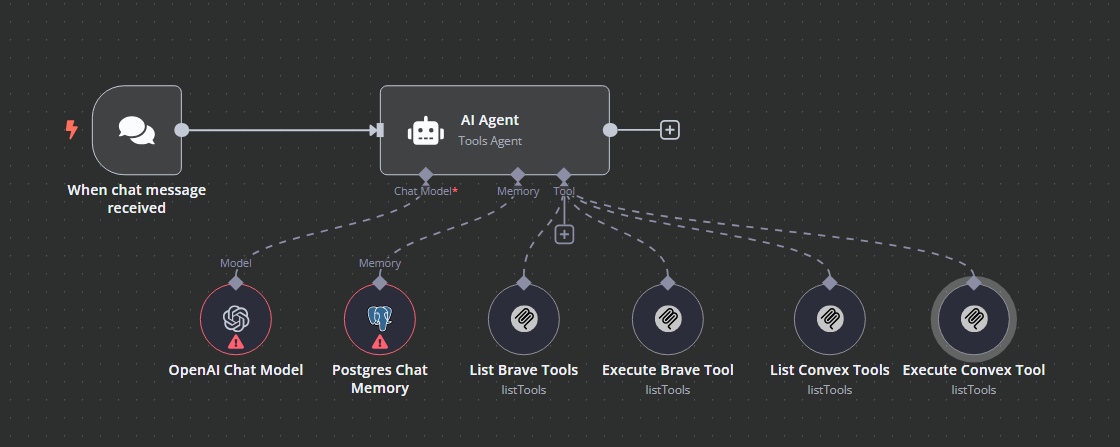
This is using the n8n community MCP node found here. You must download this before using this demo n8n workflow. Instructions can be found there.
Overview
The n8n MCP Agent Demo is a workflow that showcases:
- How to create an AI agent in n8n that can dynamically discover and use tools via MCP
- Integration with multiple MCP clients (Brave Search and Convex)
- Persistent chat memory using PostgreSQL
MCP Tool Integrations
The workflow includes two sets of MCP client tools:
-
Brave Search Tools:
- List Brave Tools: Discovers available Brave Search tools
- Execute Brave Tool: Executes a specific Brave Search tool with parameters
-
Convex Tools:
- List Convex Tools: Discovers available Convex tools
- Execute Convex Tool: Executes a specific Convex tool with parameters
How It Works
- A user message is received through the chat trigger
- The AI agent processes the message using the OpenAI model
- The agent can:
- List available tools from Brave Search or Convex
- Execute specific tools with parameters
- Maintain conversation context using PostgreSQL memory
The workflow is designed with a specific system message that instructs the AI on how to:
- Discover available tools before attempting to use them
- Parse tool information including name, description, and parameter schema
- Format tool parameters correctly when executing tools
System Message Details
The agent is configured with a system message that provides detailed instructions:
You are a helpful assistant who has access to a bunch of tools to assist with user queries. Before you try to execute any tool, you need to call the tool to list available tools for the capability you want to leverage.

When you list tools available, you'll get a list back of items that look like:

name:[tool_name]
description:[tool description to tell you when and how to use the tool]
schema
0:[param 1]
1:[param 2]
...
n-1:[param n]

Then when you call a tool, you need to give the tool name exactly as given to you, and the tool parameters need to be a json object like:

{
  "param 1": "param 1 value",
  ...
  "param n": "param n value"
}

If there are no parameters for the tool, just pass in an empty object.

For the file system, you have access to the /files directory and that is it.
Setup Requirements
To use this workflow, you'll need:
- n8n: A running n8n instance
- n8n MCP Nodes: The MCP client nodes for n8n
- PostgreSQL: For chat memory persistence
- API Credentials:
- OpenAI API key
- Brave Search API credentials
- Convex API credentials
Installation
- Import the
MCP_Agent_Demo.jsonfile into your n8n instance - Install the n8n community MCP node (instructions there)
- Configure the required credentials:
- OpenAI API
- PostgreSQL database
- Brave Search MCP client
- Convex MCP client
Usage
Once the workflow is activated, you can:
- Start a conversation with the agent
- Ask questions that require using Brave Search or Convex tools
- The agent will automatically discover and use the appropriate tools to answer your questions
Extending the Workflow
You can extend this workflow by:
- Adding more MCP clients to provide additional tool capabilities
- Customizing the system message to change agent behavior
- Adding pre/post processing nodes to enhance the agent's capabilities