
TeslaMate MCP Server
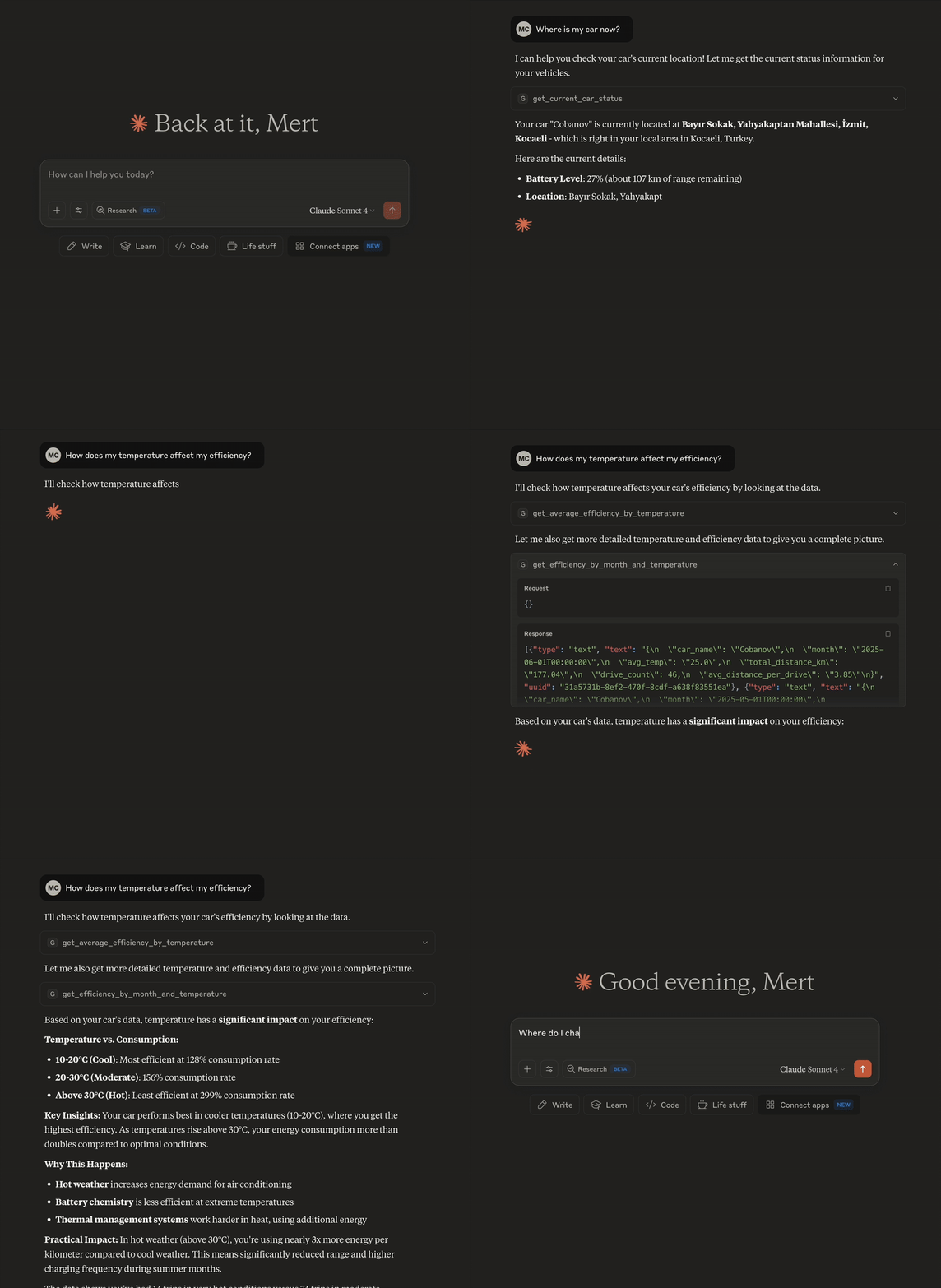
Connect your AI assistant to your TeslaMate data. This is a Model Context Protocol (MCP) server. It reads your TeslaMate PostgreSQL database. It gives MCP clients (Claude Desktop, Cursor, and others) 77 tools, 12 prompts, and interactive charts.






What you can ask
- "Is my battery really degrading?" — the server estimates usable capacity in kWh from your charging sessions.
- "How much range do I lose while parked?" — the server finds vampire drain between drives.
- "Show the route of my longest drive." — the server returns the GPS track, with an interactive map on chart-capable clients.
- "Compare my driving this month with last month." — one call returns both windows, per metric.
- "Can I reach Ankara (450 km) at 5°C without charging?" — the server estimates the arrival battery % from your own drives at that temperature.
- "Why isn't my car sleeping?" — the server reads TeslaMate's state log and lists the periods the car stayed awake while parked.
- "What did my car do on Saturday?" — one call returns the drives, charges, and parked time in order.
- "How long will the charging stop take, and when should I leave for work?" — the server times a charge from your own past sessions, and finds the routes you drive again and again.
- "Is anything wrong with my car?" — one call checks logging, open drives, tire pressures and slow leaks, parked drain, sleep, full charges left sitting, range loss, and the battery level.
- "What does driving cost me per 100 km, and how calmly do I drive?" — the server splits charging into AC and DC prices per month, and counts hard accelerations and hard braking from the power samples.
Highlights
- 65 SQL report tools. A health check, battery capacity, charge cycles and degradation (per month and per km), sleep and state history, climate run while parked, a year or month in review, a timeline of each day, trips, frequent routes, range and charging-time estimates, consumption by speed, driving style, fast-charging speeds, charging costs (with estimates for missing ones), cost per 100 km, and fuel savings, elevation, vampire drain, geofences, driving and charging hours, the regions visited, routes, and search tools for drives and charging sessions.
- 10 interactive charts (MCP Apps). Charging curves (one session, or several overlaid), battery degradation, drive and trip maps with elevation profiles, a monthly or yearly activity dashboard, a year- or month-in-review card, a map of visited places, a map of every road driven, and consumption against temperature. On clients without chart support, the same tools return plain rows.
- Guidance for the assistant. MCP instructions and 12 prompts map questions to tools, and
get_unit_preferenceslets the assistant answer in the units set in TeslaMate. - Typed inputs and outputs. Each report tool declares its parameters and result columns in a
.tomlfile. The server validates the declarations at startup. Parameters bind as SQL placeholders, never as string concatenation. - Safe custom SQL.
run_sqlruns yourSELECTinside a PostgreSQLREAD ONLYtransaction, with timeouts and a row cap. The transaction always rolls back. - Optional cost writes, with confirmation. One opt-in tool writes charging costs. A column-scoped database grant limits what it can touch. Clients with MCP elicitation show a confirmation dialog first.
- Local-time reports. Set
REPORT_TIMEZONEand daily, weekly, and monthly buckets follow your local midnight. - Two transports. Run
teslamate-mcp stdiofor local clients. Runteslamate-mcp httpfor remote clients, with bearer-token auth and a/healthprobe.
Requirements
- TeslaMate with its PostgreSQL database.
- Python 3.11+ for a local install, or Docker for a server install.
Quick start — local (stdio)
-
Install:
git clone https://github.com/cobanov/teslamate-mcp.git cd teslamate-mcp cp env.example .env # set DATABASE_URL uv sync -
Add the server to your MCP client. Example for Claude Desktop or Cursor:
{
  "mcpServers": {
    "teslamate": {
      "command": "uv",
      "args": ["--directory", "/path/to/teslamate-mcp", "run", "teslamate-mcp", "stdio"]
    }
  }
}
Quick start — Docker
cp env.example .env          # set DATABASE_URL, and set AUTH_TOKEN for remote use
docker compose up -d
The MCP endpoint is http://localhost:8888/mcp. The health probe is http://localhost:8888/health. It runs a SELECT 1 against the database and returns 503 when the database is unreachable.
A multi-arch image (linux/amd64, linux/arm64) is published to GHCR on each release:
docker run --rm -e DATABASE_URL=... -p 8888:8888 ghcr.io/cobanov/teslamate-mcp:latest
Deploy on Unraid, behind Cloudflare
You can reach this server from claude.ai, Claude Desktop, and mobile — with OAuth login and with no open ports on your home network.
The Unraid + Cloudflare deployment guide shows the full path:
- Run the container on Unraid with the included Community Apps template.
- Publish it through a Cloudflare Tunnel. No inbound firewall rules are necessary.
- Put a Cloudflare Zero Trust MCP Server Portal in front. The portal handles OAuth for Claude clients and sends the bearer token upstream.
The guide includes the exact dashboard fields, verification commands for each phase, and a troubleshooting table.
The portal rewrites
ui://resource URIs, so the interactive charts (show_*tools) do not render through it. To get them, connect Claude through Cloudflare Access directly. The guide's direct connection section shows how.
Tools
Each report tool accepts optional filters: car_name everywhere, plus days, limit, and thresholds where they apply. A call with no arguments returns the full report.
Tools return metric values (km, km/h, °C, bar, m) and rated range. get_unit_preferences reads the units chosen in TeslaMate's settings (km or mi, °C or °F, bar or psi, rated or ideal range) so the assistant can convert when it answers; the charts stay metric.
The server also sends MCP instructions: how to read units, time zones and costs, and which tool answers which kind of question.
Reports (28)
| Group | Tools |
|---|---|
| Vehicle | get_basic_car_information, get_current_car_status, get_software_update_history, get_unit_preferences |
| Battery | get_battery_health_summary, get_battery_degradation_over_time, get_daily_battery_usage_patterns, get_tire_pressure_weekly_trends |
| Driving | get_monthly_driving_summary, get_daily_driving_patterns, get_driving_hours, get_longest_drives_by_distance, get_total_distance_and_efficiency, get_drive_summary_per_day, get_odometer_history, get_visited_places, get_regions_visited, get_frequent_routes, get_driven_roads |
| Efficiency | get_efficiency_by_month_and_temperature, get_average_efficiency_by_temperature, get_efficiency_by_elevation, get_efficiency_by_speed, get_drive_efficiency_points, get_unusual_power_consumption |
| Charging | get_charging_by_location, get_all_charging_sessions_summary, get_most_visited_locations |
Insights (16)
| Tool | What it returns |
|---|---|
get_health_checks | "Is anything wrong?": eight checks per car, worst first, each with alert, warn, ok, or unknown, a value, and what it means: days since TeslaMate last logged the car, drives and charges left open, tire pressure spread and a tire losing more than the others (a slow leak), rated km lost per day parked, hours a day awake while parked, charges to 95 % or more left sitting, range lost since the first charges, and the battery level |
get_battery_capacity_trend | Usable capacity in kWh, estimated from charging sessions (energy added ÷ SOC gained), per month and car |
get_projected_range_by_mileage | Rated range at 100 % per odometer bucket (1000 km by default), from charges that ended at 50 % or more, with the drop from the car's best bucket; degradation per km, like TeslaMate's Projected Range dashboard |
get_driving_style | Per month: hard accelerations and hard regenerative braking per 100 km, time above a speed (120 km/h by default), top speed, the share of energy regen recovered, and a 0–100 style score; thresholds are parameters |
get_charging_hours | Charging sessions by the local hour they started, AC and DC apart, with kWh and each hour's share; shows whether home charging lands in a night tariff |
get_vampire_drain | Range lost while parked between drives; gaps that contain a charge do not count |
get_charging_efficiency | kWh added vs kWh drawn per car, split into AC and DC |
get_charging_by_geofence | Charging totals per TeslaMate geofence, plus an "Ungeofenced" group |
get_soc_hygiene | Share of samples above 80% and below 20% state of charge |
get_period_comparison | The last N days vs the N days before, one row per metric |
get_activity_report | A month by day or a year by month: drives, distance, consumption, charging, and cost per bucket, empty days included |
get_recap | A year or month in review in one row: totals, distance against the period before (cut at the same point while it runs), charging and cost, and highlights: longest drive, busiest day, most efficient day or month, favourite destination and charging spot, top speed, temperature range, software updates |
get_parked_climate_sessions | Times the climate ran while parked (preconditioning, cooling down after arriving, Keep Climate / Dog / Camp mode): minutes, estimated battery kWh, cooling or heating, temperatures, and where |
get_climate_usage | The same per month: sessions, preconditioning count, hours, hours plugged in, estimated kWh and cost |
get_trip_energy_estimate | "Will I make it?": energy and battery % a drive of a given distance takes, from this car's own drives at a similar temperature (optionally motorway drives only, or drives at a given average speed), with a conservative figure and the arrival battery % |
get_charging_time_estimate | "How long will the stop take?": minutes from one battery % to another per charger type (Supercharger, other fast charger, AC), from the time past sessions spent at each percent, with a slow figure and the kWh added |
Timeline and car state (4)
TeslaMate logs whether each car is online, asleep, or offline. get_current_car_status reads that log too, and reports whether the car is driving, charging, online, asleep, or offline right now. It also gives the cabin climate and the four tire pressures. Most rows logged while driving have neither, so each group comes from the latest row that has it, with the time of that row.
| Tool | What it returns |
|---|---|
get_timeline | What the car did, in order: drives, charges, the time parked between them, and software updates, with places, battery %, kWh, and cost; answers "what did my car do on Saturday?" |
get_state_history | Per car and local day: hours online, asleep, and offline, driving and charging hours, idle awake hours (online while parked and not charging), and wake-ups |
get_idle_awake_periods | The online periods that kept the car awake while parked, longest first, with where it was parked; answers "why isn't my car sleeping?" |
get_logging_gaps | Logging holes: drives and charges TeslaMate never closed, and stretches with no position across which the odometer moved or the battery level rose (a drive or charge that was not logged). A parked car logs nothing, so long parks stay out |
Search and detail (6)
| Tool | What it returns |
|---|---|
search_drives | Drives filtered by date range, location text, distance, and car; sortable. Each drive has its Wh/km against what the car usually uses at the same outside temperature |
search_charging_sessions | Charging sessions filtered by date range, location, energy, and car |
get_drive_details | Full statistics for one drive, with ideal range, the start and end geofence names, and the energy the motors used and regenerative braking recovered |
get_drive_route | GPS track points for one drive, downsampled |
get_charging_curve | Power and SOC curve for one charging session, downsampled |
get_charging_session | One charging session, AC or DC: energy added and used, battery % at start and end, cost, duration, geofence, AC phases, cable, and peak power |
Costs (5)
A session with no cost recorded counts as unknown, not free: averages per kWh use only the sessions that have a cost, and each report says how many sessions lack one.
| Tool | What it returns |
|---|---|
get_charging_costs | Costs grouped by month, location, or car, with the number of sessions that have no cost |
get_charging_cost_estimates | An estimated cost for each session with none: free Supercharging, a price you give, the geofence tariff, what you paid at the same place, or the typical price for that charger type |
get_cost_per_distance | Per month: distance, kWh added split into AC and DC, cost, the AC, DC, and overall price per kWh, cost per 100 km, and kWh charged per 100 km |
get_fuel_savings | What the same distance would have cost in fuel, against what charging cost, per car |
get_geofences | Each TeslaMate geofence with its center, radius, and tariff: cost per unit, session fee, and billing type |
Trips (3)
TeslaMate ends a drive every time the car parks, so a road trip with a WC break and a charging stop is several drives. The trip tools merge a car's consecutive drives while each stop in between stays short: up to max_stop_minutes (default 30) without charging, or max_charging_stop_minutes (default 120) when a charging session happened during the stop. Overnight stops end a trip.
| Tool | What it returns |
|---|---|
get_trips | One row per trip: legs, stops and charging stops, distance, driving vs stopped time, moving speed, battery % at start and end, kWh added on the way; filter by date, car, distance, legs, or a place the trip passed through |
get_trip_details | One trip's timeline: each drive, and each stop with where and how long, plus kWh and battery % for charging stops |
get_trip_route | GPS track of a whole trip across its drives, downsampled, with the stop before each leg |
Fast charging (3)
A session is DC when a sample came from a fast charger, or had no AC phases while power flowed; a Tesla-branded fast charger is a Supercharger.
| Tool | What it returns |
|---|---|
get_fast_charging_sessions | DC sessions with peak power, average power, average power across 20–80% (the fair comparison), minutes from 20% to 80%, whether the battery heater ran, and cost |
get_fast_charging_by_location | The same per location and charger type: which fast chargers are fastest and cheapest for your car |
get_charging_curve_comparison | Power against battery % for several sessions, for overlaying their curves |
Charts (10)
show_charging_curve, show_charging_curve_comparison, show_battery_degradation, show_drive_route, show_trip_route, show_activity_report, show_visited_places, show_driven_roads, show_efficiency_vs_temperature, and show_recap are the chart versions of their get_* tools. On chart-capable clients they draw an interactive chart in the conversation. On other clients they return the same rows as the get_* tool. The route, trip, places, and roads maps are interactive (pan, zoom, fit) and draw over CARTO's light or dark basemap, matching the client; the trip map also marks every stop, with charging stops highlighted. The route and trip maps draw an elevation profile under the track; hovering it finds the place on the map. Where the client cannot run the interactive map (no WebGL, or workers blocked), a static map over Esri's gray canvas is drawn instead. show_activity_report is a monthly or yearly dashboard, show_visited_places maps where the car parks (sized by arrivals, charging places highlighted), show_driven_roads draws every road the car has driven as one network (a route driven many times is drawn once: the newest drive between each pair of places), and show_efficiency_vs_temperature plots every drive's consumption against outside temperature with the 5 °C average. show_recap is a year- or month-in-review card with the headline distance and highlights. Set MAP_TILES=false to keep the maps fully offline.
Custom (2)
get_database_schema— lists all tables, shows the columns of one table, and re-reads the schema when you passrefresh=true.run_sql— runs one customSELECTorWITH … SELECT.
Prompts (12)
Ready-made workflows that name the tools to call, in order: status_report, summarize_driving, analyze_battery_health, analyze_charging, find_anomalies, weather_efficiency, diagnose_sleep, plan_trip, review_trip, monthly_recap, year_in_review, and charging_costs_and_savings. With cost writes on, backfill_costs_from_receipts joins them.
Cost writes (opt-in, off by default)
Set ENABLE_CHARGING_WRITES=true to register set_charging_cost(charging_process_id, cost). It sets the cost of one charging session. This is the same field that the TeslaMate UI edits. A backfill_costs_from_receipts prompt guides the receipt-matching workflow.
Give the database role write access to that single column only:
GRANT UPDATE (cost) ON charging_processes TO teslamate_ro;
This grant is the security boundary. The tool cannot write anything else. On clients with MCP elicitation, the user confirms each write in a dialog. run_sql stays read-only in all cases.
Configuration
The server reads all settings from environment variables. It also reads a .env file. Only DATABASE_URL is required.
| Variable | Default | Purpose |
|---|---|---|
DATABASE_URL | required | postgresql://user:pass@host:5432/teslamate |
AUTH_TOKEN | empty | Turns on bearer auth for the HTTP endpoint |
CF_ACCESS_TEAM_DOMAIN | empty | Cloudflare Access team domain; accepts Access-verified requests |
CF_ACCESS_AUD | empty | Audience tag of that Access application (set with the above) |
HOST | 0.0.0.0 | HTTP bind host |
PORT | 8888 | HTTP bind port |
POOL_MIN_SIZE | 1 | Minimum pool connections |
POOL_MAX_SIZE | 10 | Maximum pool connections |
STATEMENT_TIMEOUT_MS | 30000 | statement_timeout for every query, including reports |
QUERY_TIMEOUT_MS | 5000 | Tighter statement_timeout for run_sql |
CUSTOM_SQL_ROW_LIMIT | 1000 | Most rows run_sql returns, whatever its LIMIT |
REPORT_TIMEZONE | UTC | IANA timezone for report buckets |
MAP_TILES | true | Interactive basemap under the route, trip, places, and roads maps (CARTO tiles; Esri as fallback) |
ENABLE_CHARGING_WRITES | false | Registers set_charging_cost |
LOG_LEVEL | INFO | Python log level |
DEBUG | false | Starlette debug mode; keep off in production |
Generate a bearer token:
uv run teslamate-mcp gen-token
Add your own query
No code change is necessary. The server finds new queries at startup.
-
Put a
SELECTinsrc/teslamate_mcp/queries/your_query.sql. -
Add
your_query.tomlnext to it:name = "get_your_data" description = "What this returns, units, grouping, and available filters." [[params]] # optional: typed tool arguments name = "car_name" type = "string" # string | integer | number | boolean description = "Case-insensitive substring match on the car's name." [[params]] name = "limit" type = "integer" description = "Maximum number of rows returned." default = 10 minimum = 1 maximum = 100 [[output]] # optional: one entry per result column name = "car_name" type = "string" -
Write parameters as
%(car_name)splaceholders in the SQL. Do not build SQL from strings. Cast the first use of each placeholder, for example%(limit)s::int. Write a literal%as%%. The reserved%(tz)splaceholder bindsREPORT_TIMEZONE. -
Restart the server. The registry validates the pair and registers the tool. Run
teslamate-mcp list-toolsto confirm.
The startup validation rejects a query when a declared parameter is missing from the SQL, or when the SQL uses an undeclared parameter.
Security
run_sqlruns in aREAD ONLYtransaction that always rolls back. Timeouts and a row cap apply.- Connect with a
SELECT-only PostgreSQL role, not TeslaMate's ownteslamateuser. TeslaMate's Compose makes that user a superuser, and a read-only transaction still lets a superuser read server files throughrun_sql. SECURITY.md has theCREATE ROLEsnippet. - The maps' basemap is fetched by the viewer's browser from CARTO (from Esri where the client cannot run the interactive map), which reveals the viewer's IP address and the rough area being viewed. The map library itself (MapLibre GL) is served by this server, not a CDN.
MAP_TILES=falseturns this off. - The HTTP transport compares bearer tokens with a timing-safe function. Behind Cloudflare Access, it can instead verify the signed
Cf-Access-Jwt-Assertion(signature, issuer, audience, expiry). - Report vulnerabilities through private security advisories. See SECURITY.md.
Development
uv sync                          # install with dev dependencies
uv run ruff check src tests      # lint
uv run ruff format src tests     # format
uv run pytest                    # database tests need Docker or TESLAMATE_TEST_DATABASE_URL (a scratch database)
License
MIT — see LICENSE.