
OPS Agent
OPS Agent will help you to analyze and debug ops (live operations) issues.
Services
- LocalStack: Emulates AWS services locally
- SQS queues and DLQs defined in
dlqs.json
- SQS queues and DLQs defined in
- OpenSearch: Search and analytics engine
- OpenSearch Dashboards: UI for interacting with OpenSearch
- mcp-server-sse: Server-Sent Events implementation for MCP communication
- mcp-api-server: API server for handling requests
- ops-ui: React-based frontend application
Getting Started
Prerequisites
- Docker and Docker Compose
- AWS CLI (optional for manual testing)
- Ollama - for local LLM processing
Setting Up Ollama
- Download and install Ollama from ollama.ai
- Start the Ollama service
- Pull the required model:
ollama pull qwen3:8b
Running the Environment
- Build and start all services with a single command:
docker-compose up --build
This command will:
- Build all required Docker images
- Start the containers
- Initialize SQS queues and populate them with sample data via the migration service
- Load sample logs into OpenSearch
- Set up all necessary infrastructure for the OPS Agent to work
- Check if services are running:
docker-compose ps
- Access the UI at http://localhost:3000 and execute queries
Accessing Services
- LocalStack AWS services: http://localhost:4566
- OpenSearch: http://localhost:9200
- OpenSearch Dashboards: http://localhost:5601
- Ops UI: http://localhost:3000
- MCP API Server: http://localhost:3002
- MCP SSE Server: http://localhost:3001
Working with the Agent
OPS Agent provides two operational modes to analyze and solve problems:
Agent Without Thinking Mode
In the standard mode, the agent processes your queries and returns the final results without showing the internal reasoning process:
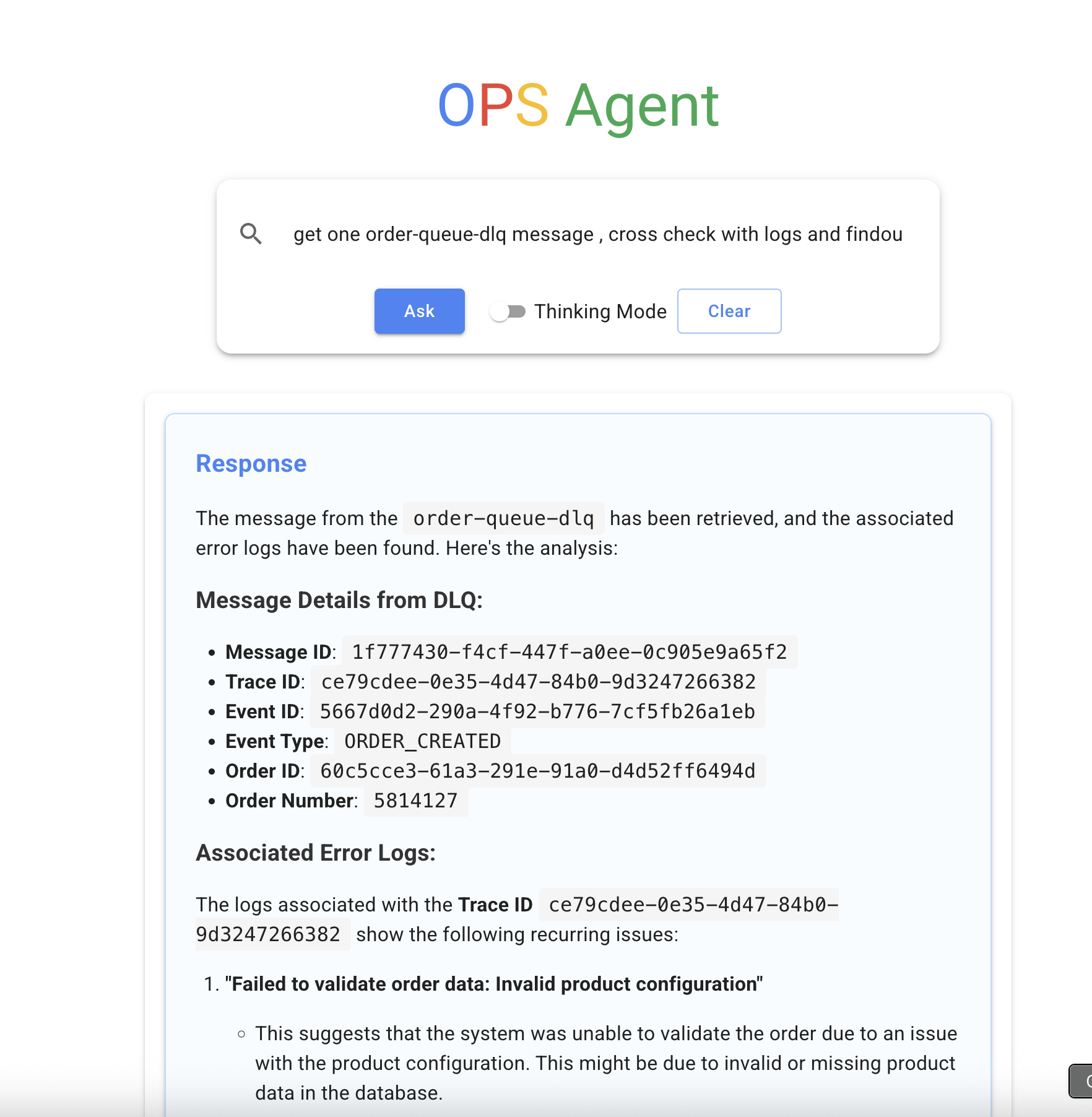
This mode is optimized for quick answers and a cleaner interface.
Agent With Thinking Mode
When the thinking mode is enabled, OPS Agent shows its complete reasoning process, displaying each step of its analysis:
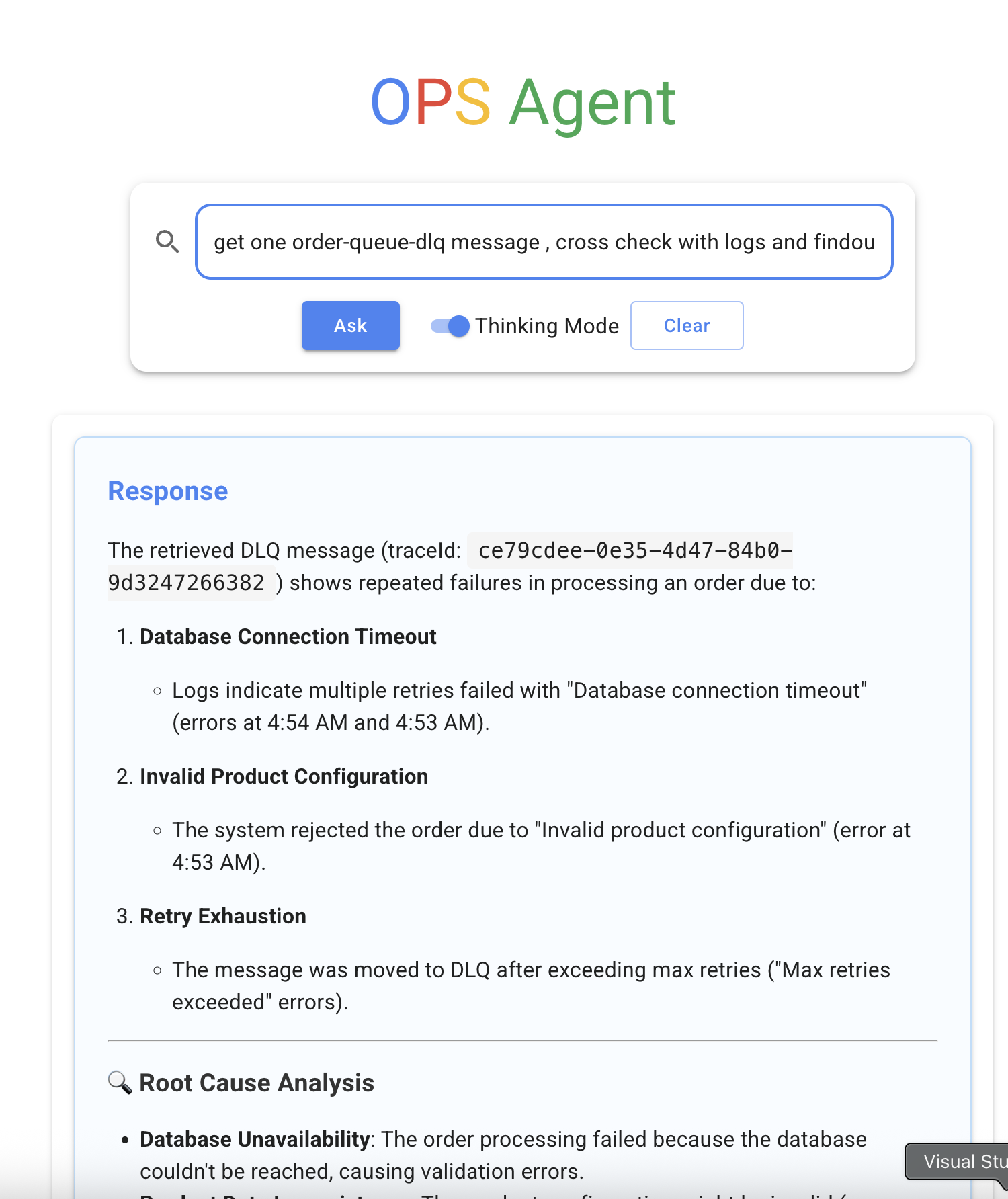
The thinking mode reveals:
- Internal thought processes
- Tools being used
- Step-by-step reasoning
- Intermediate results
Agent Thinking Process
The agent uses a structured approach to solve problems:
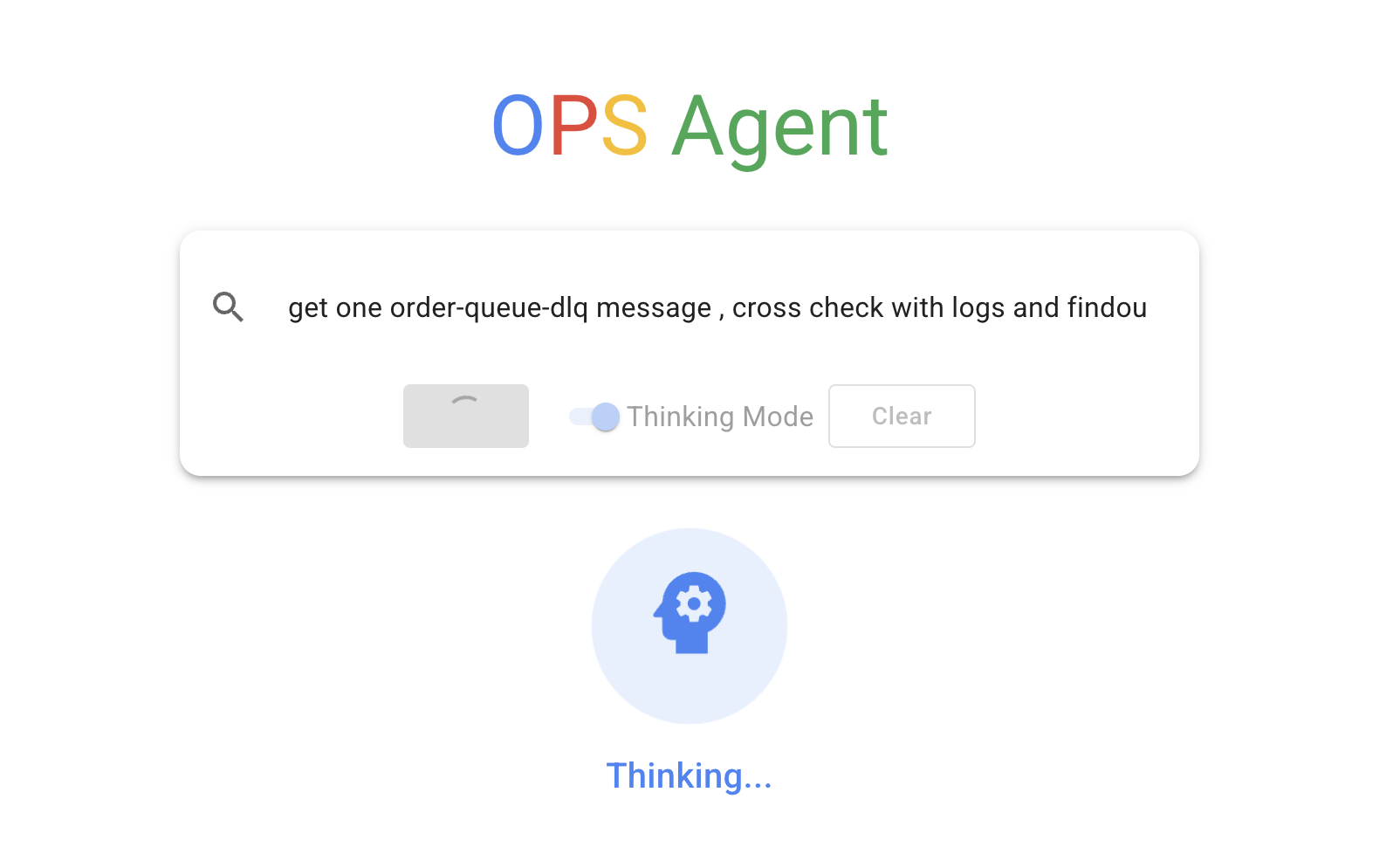
This includes:
- Parsing and understanding your query
- Planning the steps to address the issue
- Selecting and using appropriate tools
- Analyzing data from multiple sources
- Formulating a response based on collected information
Agent Internal Process with Tools
The agent leverages various tools to gather and process information:
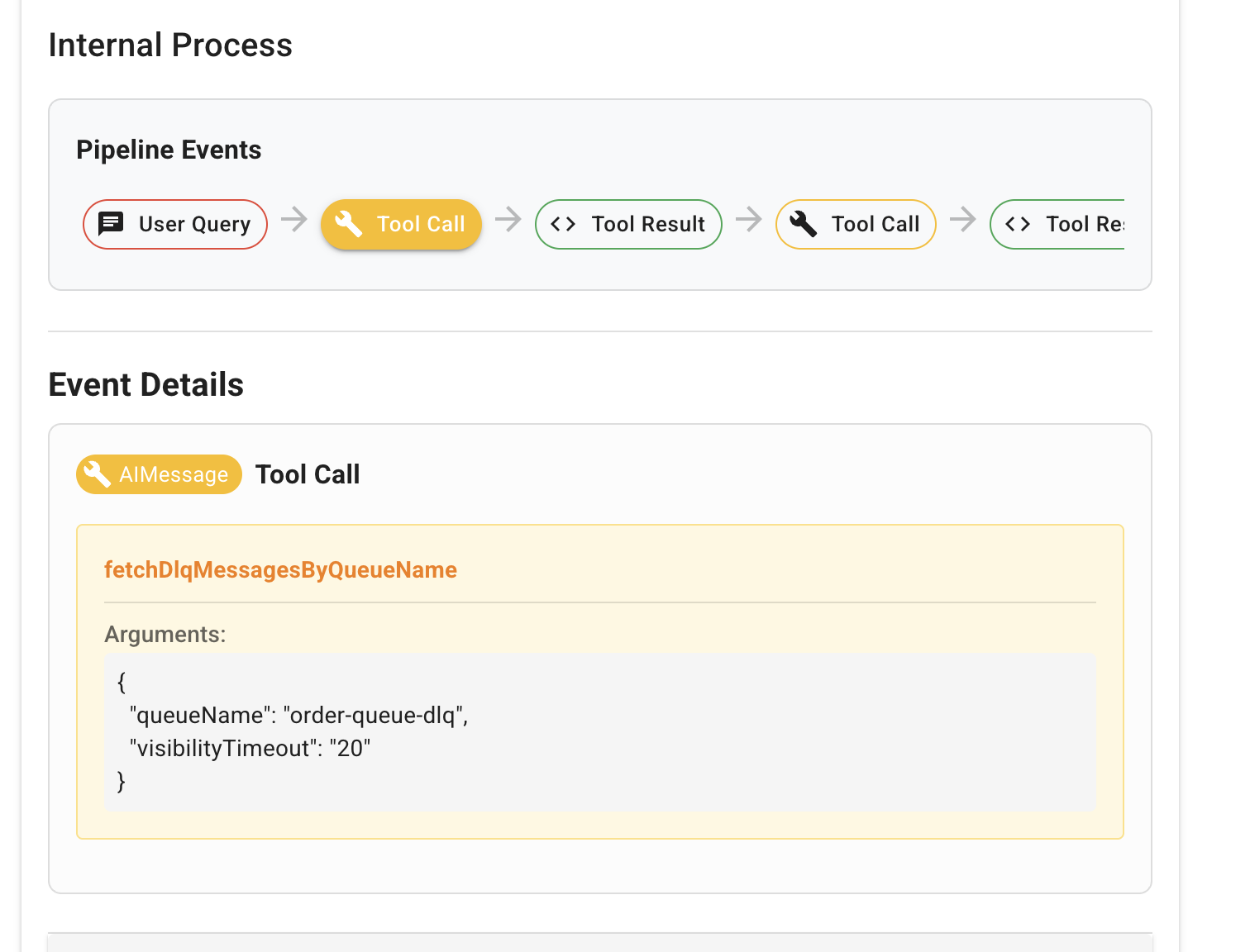
These tools include:
- Log retrieval and analysis
- Queue inspection
- Trace correlation
- Pattern recognition
- Data summarization
Working with SQS Queues
The following queues and Dead Letter Queues (DLQs) are automatically created from dlqs.json:
- order-queue → order-queue-dlq
- order-cancellation-queue → order-cancellation-queue-dlq
Testing SQS Locally
# List queues
aws --endpoint-url=http://localhost:4566 sqs list-queues

# Send a message to a queue
aws --endpoint-url=http://localhost:4566 sqs send-message \
  --queue-url http://localhost:4566/000000000000/order-queue \
  --message-body '{"orderId": "123456", "status": "created"}'

# Receive messages from a queue
aws --endpoint-url=http://localhost:4566 sqs receive-message \
  --queue-url http://localhost:4566/000000000000/order-queue
Working with OpenSearch
Sample logs have been preloaded into the OpenSearch instance. You can access them via the OpenSearch API or using OpenSearch Dashboards.
Sample Query
# Search all logs
curl -X GET "http://localhost:9200/cwl-logs/_search" -H 'Content-Type: application/json' -d '{
  "query": {
    "match_all": {}
  }
}'

# Search for error logs
curl -X GET "http://localhost:9200/cwl-logs/_search" -H 'Content-Type: application/json' -d '{
  "query": {
    "match": {
      "level": "ERROR"
    }
  }
}'
Using the Ops UI
The Ops UI provides a user-friendly interface for interacting with all services:
- Access the UI at http://localhost:3000
- Use the interface to:
- Monitor SQS queues and DLQs
- Search logs in OpenSearch
- Perform operations through the MCP API
- Toggle between standard and thinking modes
Troubleshooting
If you encounter connectivity issues with SQS services:
- Ensure the initialization script has been run to create the queues
- Check LocalStack logs with
docker logs ops_agent-localstack-1 - Verify the queue URLs are correctly formatted
If Ollama isn't connecting:
- Ensure Ollama is running on your host machine
- Check that the qwen3:8b model has been pulled
- Verify that host.docker.internal is accessible from containers
Shutting Down
To stop all services:
docker-compose down
To remove all data (including volumes):
docker-compose down -v


